-
For Resellers
-
-
For Clients
-
-
WHMCS Integration
Email Templates Settings:
Email Message and Notifications:
MojoCP provides a powerful email and notification feature that allows you to stay in touch with your clients and keep them informed about important events and actions on their account.
When an action is triggered on a client’s account, such as a password reset, the email message and notification feature automatically sends a pre-configured email to the client, notifying them of the action. The client will also receive a notification on their dashboard, displayed next to their user settings. This feature helps to keep your clients informed and engaged, ensuring that they are always up-to-date on their account activity.
In addition to the pre-configured emails, MojoCP also allows you to create custom email templates that can be scheduled to be sent out to your clients. This provides you with the flexibility to create and send targeted messages that are specific to your clients’ needs.
The email templates in MojoCP are fully customizable, allowing you to brand them with your own company name and logo. This ensures that your clients receive a consistent and professional experience, further enhancing their engagement with your brand.
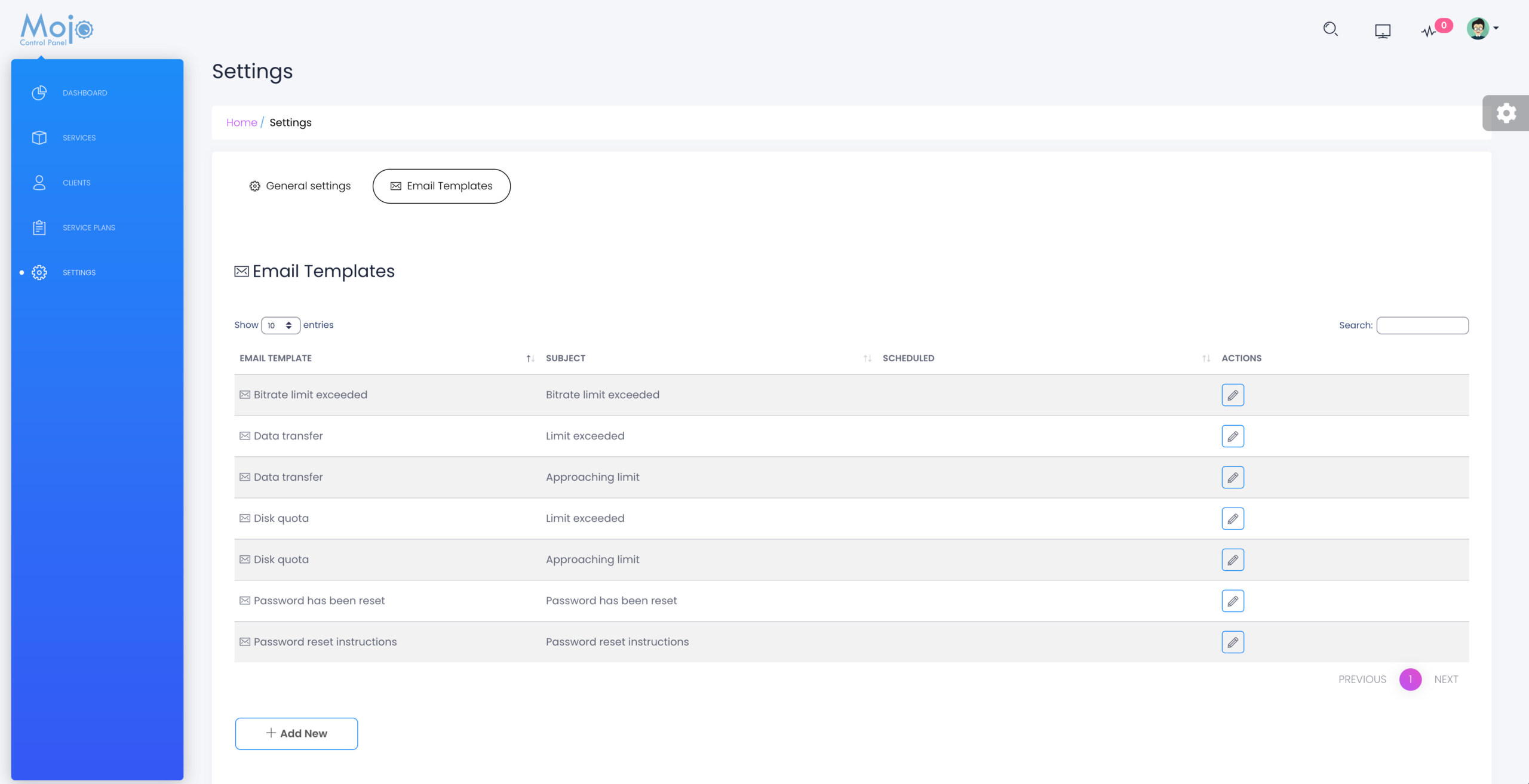
The standard email and notification templates available in MojoCP include:
- Bitrate limit exceeded
- Data transfer “approaching limit and limit exceeded”
- Disk quota “approaching limit and limit exceeded”
- Password has been reset
- Password reset instructions
Overall, the email message and notification feature in MojoCP is a powerful tool that allows you to stay connected with your clients and provide them with the information they need to stay engaged and informed about their account activity.
Create a new notification templates.
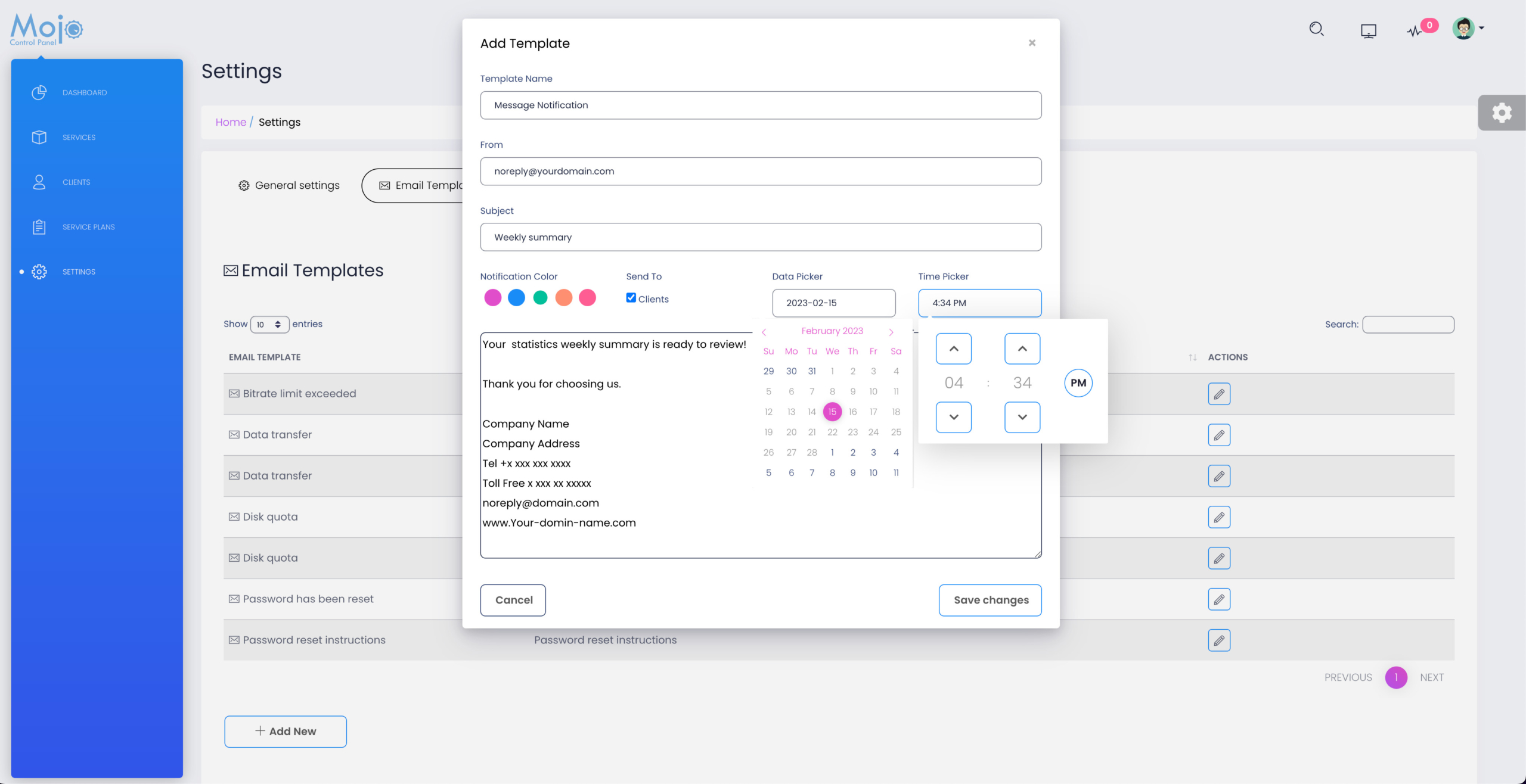
Create and schedule custom notifications or Email to be sent out to clients under the email template tab.
- Log in to your MojoCP dashboard and click on “Settings” in the navigation menu.
- Select “Email Templates” from the settings page.
- Click on “Add New” to create a new email template.
- In the dialog box, enter the details for your email or message notification, including the new template name, your company email, subject message, and choose the notification color.
- Pick the date and time when the notifications will be sent using the “Schedule Date and Time” option.
- Once you have filled in all the necessary details, click on “Save Changes” to save the new email template.
Your custom email template is now created and scheduled to be sent at the specified date and time.
Overall, creating and scheduling custom email templates in MojoCP is a straightforward process that allows you to send targeted and personalized messages to your clients. By following these simple steps, you can stay connected with your clients and keep them informed about important events and actions on their account.
Coming Soon…