-
For Resellers
-
-
For Clients
-
-
WHMCS Integration
Live Stream Recording
At Mojocp, we offer a powerful live stream recording solution that enables you to record and save your live streams for future playback or on-demand viewing. Our live stream recording technology provides you with the ability to create high-quality recordings of your live events, ensuring that your content can be accessed by your audience at any time.
With our live stream recording solution, you can capture and record your live streams in real-time, without any loss of quality. This is particularly important for businesses that want to preserve the quality and integrity of their live events, such as concerts, sports events, or corporate meetings.
Our live stream recording technology also provides you with the flexibility to choose how you want to record your live streams. You can choose to record your streams locally, on your own servers, or you can opt for cloud-based storage for easy accessibility and sharing.
In addition, our live stream recording solution also allows you to edit and trim your recorded content, making it easy for you to create highlights or snippets of your live events for future use. This feature is particularly useful for businesses that want to create promotional content or highlight reels of their live events.
At Mojocp, we understand the importance of live stream recording for businesses, which is why we offer a flexible and powerful solution that is designed to meet the needs of your business. Contact us today to learn more about how our live stream recording technology can help take your live streaming to the next level.
About
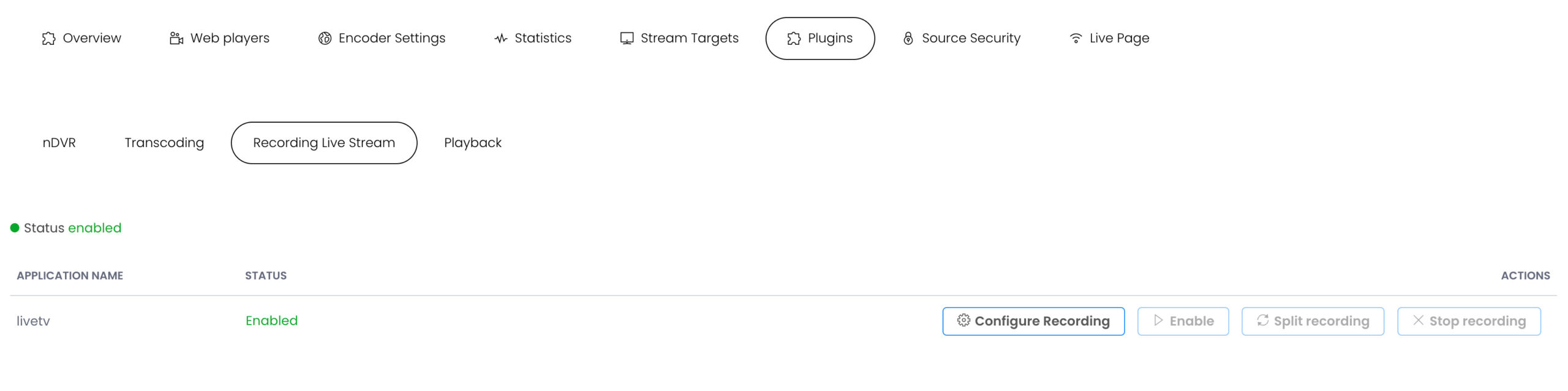
About incoming Streams Recording
You can view details about all live streams published to this application or live streams that this application connects to and record the streams to video on demand (VOD TvStation) files for later playback and schedule from the TVStation.
Recording
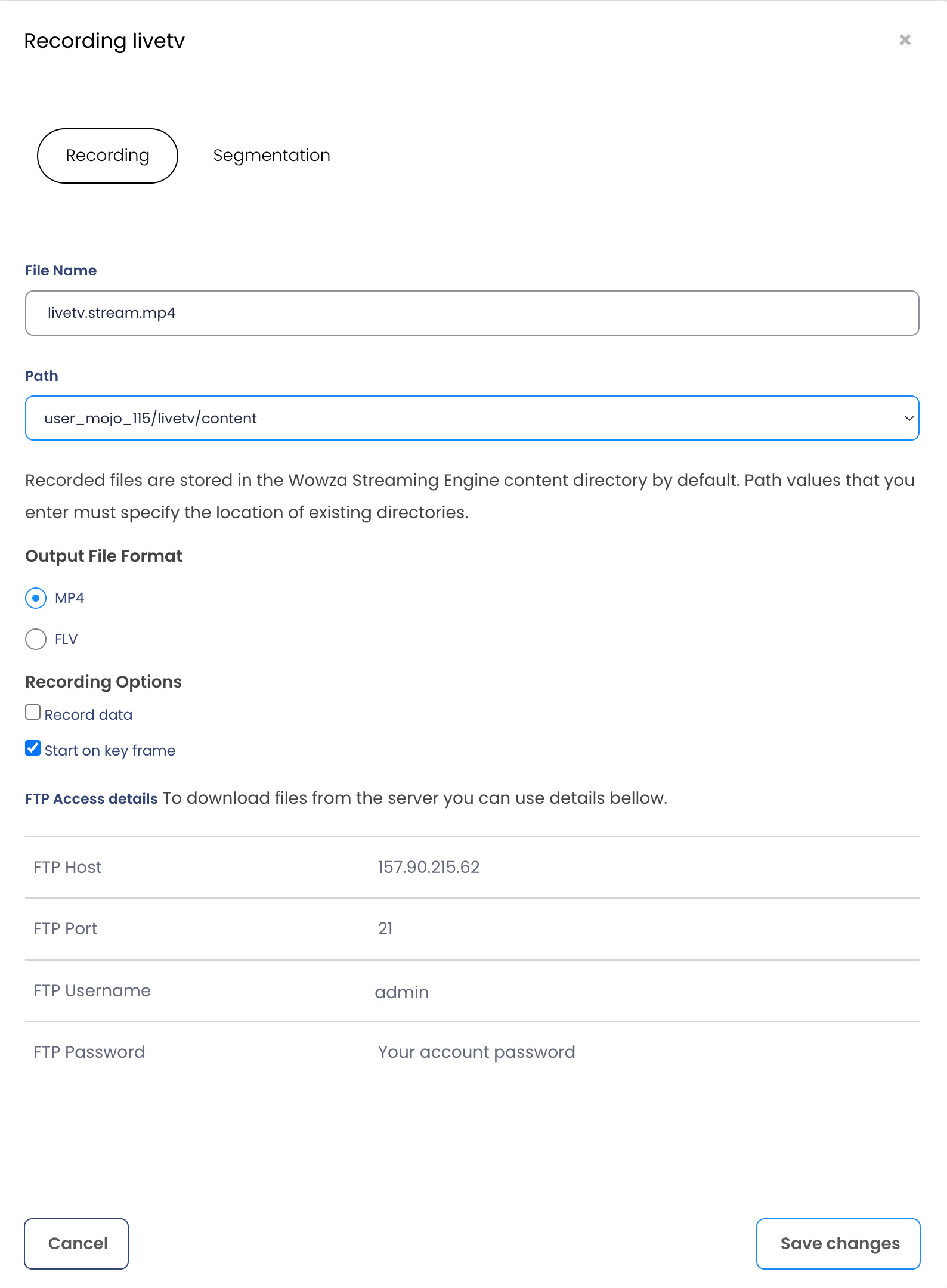
To record an incoming live stream, click the Configure Recording for the stream to open the Record dialog box. In the dialog box, configure options that control how the live stream is recorded. For details, see Live Stream Recording Options below.
To stop recording an incoming live stream, click the Stop Recording icon for the stream.To stop the current recording and then start recording the same incoming live stream to a new file, click the Split Recording icon for the stream.
Live Stream Recording Options
You can record incoming live streams to video on demand files for later playback. You can split in-process live streams into multiple on-demand MP4 (QuickTime container) files or FLV (Flash Video container) files, with the split points based on video duration, clock time, or file size.
Output File Format
The video on demand format of the recorded file, either MP4 (the default value) or FLV.
Recording Options
Record data. If metadata is available in the live stream, include it in the recorded file.Start on key frame. Start recording the live stream at the first key frame that’s encountered.
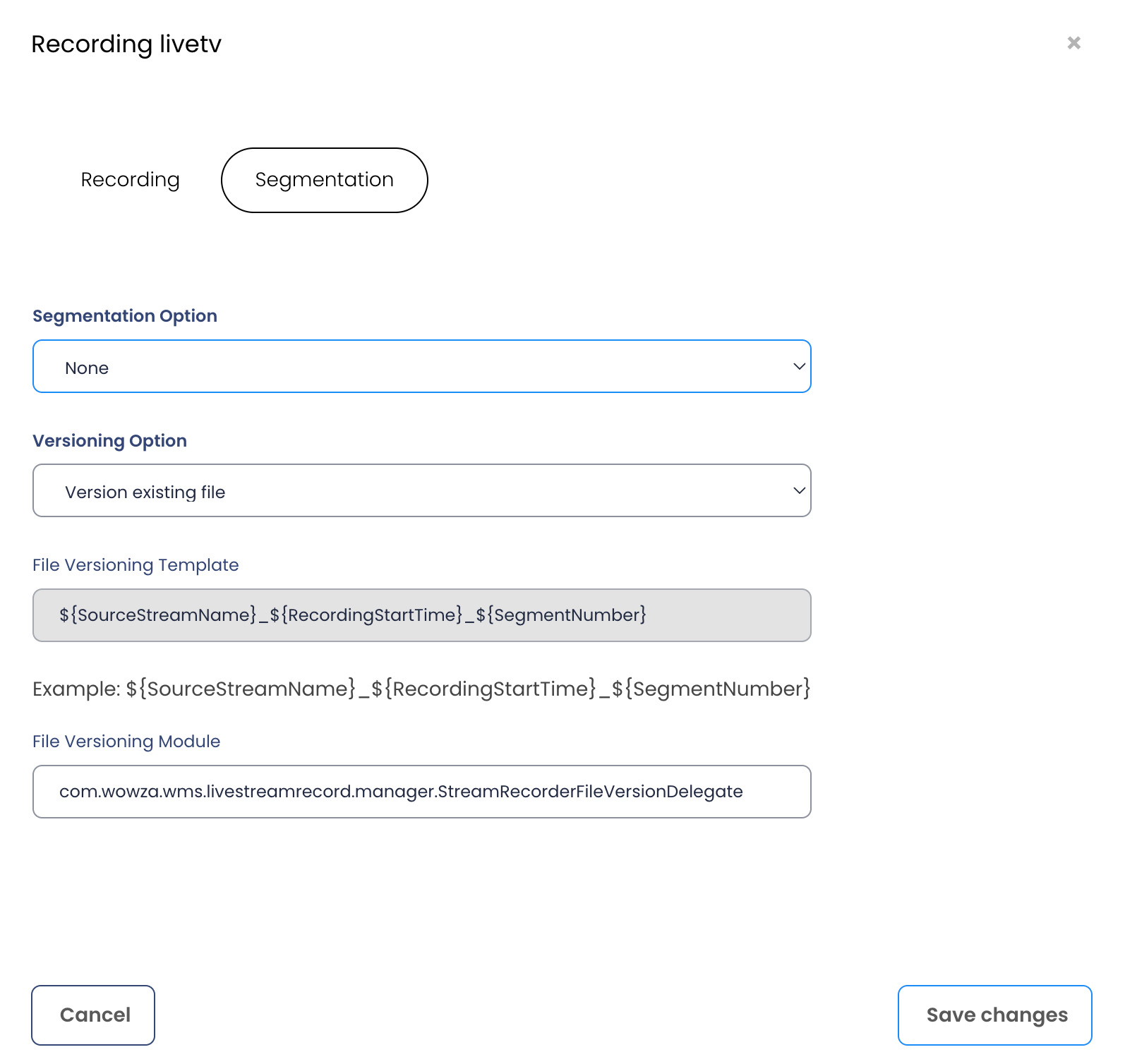
Segmentation Option
The segmentation options specify how live streams are recorded to multiple files. The split points can be based on the recorded file size or duration, or on a schedule:
None. Record the live stream to a single file (the default setting). Select a Versioning Option that specifies what to do if the live stream is restarted:
Append to existing file.
Resume recording the live stream to the existing file.
Version existing file.
Start recording the live stream to a new file (the default setting). The live stream will be recorded to a new file with a file name that’s generated using the format [streamName]_[segmentNumber]. The File Versioning Template value isn’t used.
Overwrite existing file.
Start recording the live stream to a new file with the same name as the existing file. This option will replace the previously recorded file with a new one.
Segment by size. Split the live stream into multiple on-demand files with a maximum size. Specify the maximum size value (in megabytes) in Segment Size. The minimum supported segment size is 1 MB. The live stream will be recorded to a new file with a file name that’s generated using the File Versioning Template value.
Segment by duration.
Split the live stream into multiple on-demand files with a maximum duration. Specify the maximum duration value (in Hours:Minutes:Seconds) in Segment Duration. The minimum supported segment duration is 10 seconds. The live stream will be recorded to a new file with a file name that’s generated using the File Versioning Template value.
Segment by schedule. Split the live stream into multiple on-demand files based on a schedule. Specify the schedule by selecting one of the following Segment Schedule options:
Every hour on the hour.
Split the recording into a new file at the top of each hour. This is the default setting.Advanced. Split the recording using a customized segmentation schedule that’s derived from an nnCron cron expression.
File Versioning Template/Module
If you select a Segmentation Option that requires live streams to be recorded to multiple files, the file names of new recordings are created based on the template variables specified in File Versioning Template using the module specified in File Versioning Module. For more information about template variable values that you can use in File Versioning Template. To specify your own module that creates file names, enter the custom module name in File Versioning Module.