
-
For Resellers
-
-
For Clients
-
-
WHMCS Integration
File Manager Interface
The MojoCP file manager is a comprehensive interface for managing your cloud-based video files. It allows users the ability to easily upload, organize and access video files in one central location. The file manager provides a user-friendly interface. The File Manager gives you the ability to organize files in folders and automatically MojoCp will add metadata to the files such as name, description and tags, to make them easily searchable. With MojoCP file manager, you have complete control over your video files and can easily be managed and distributed to the content on-demand, TvStation.
Coming Soon..
Uploading Files
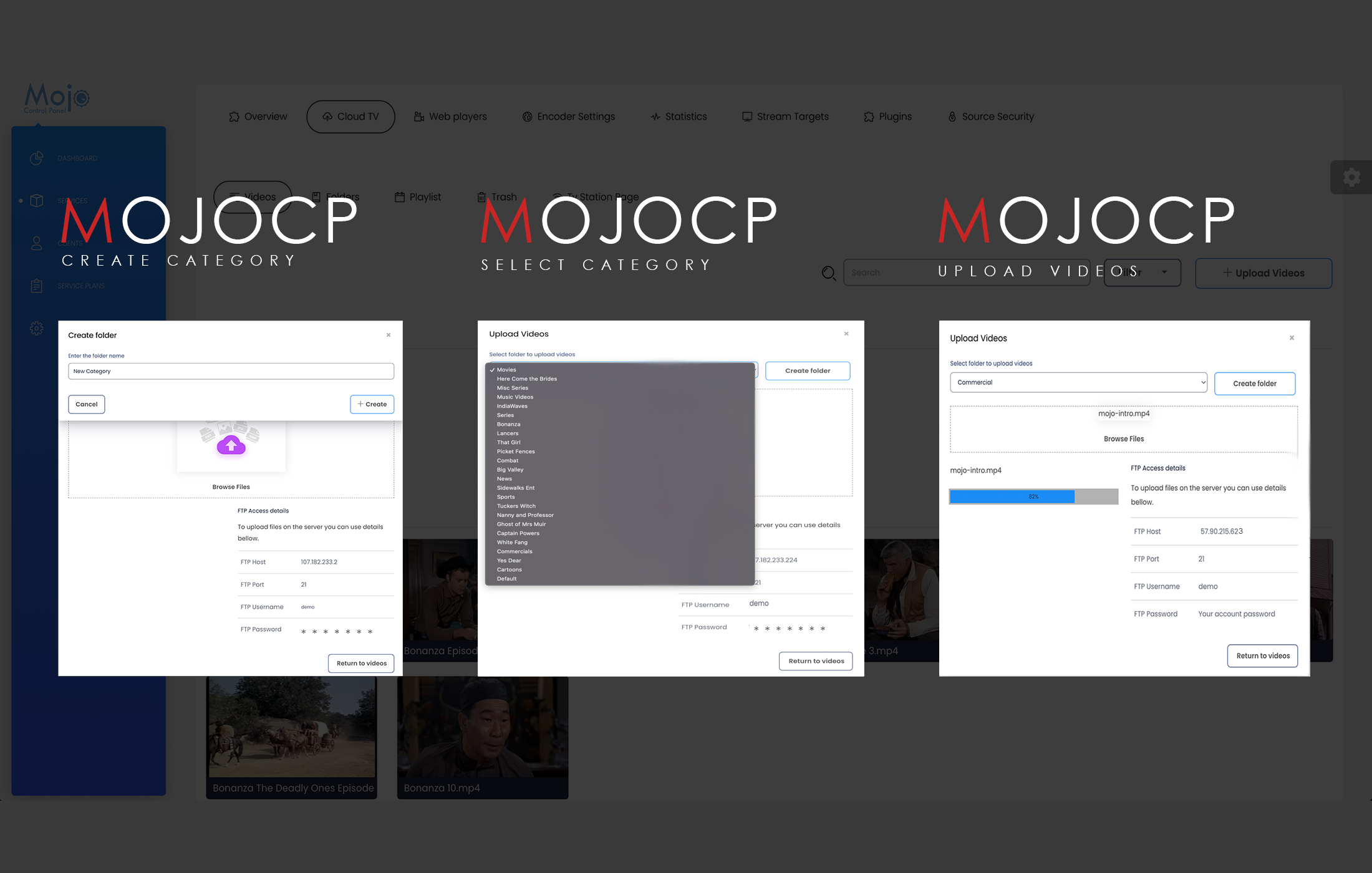
The File Manager function allows you to select the category you would like to upload your videos into. You can also create a new category in the drop down menu. Here you will drag and drop your files from your desktop into the browse files box.
File Operations
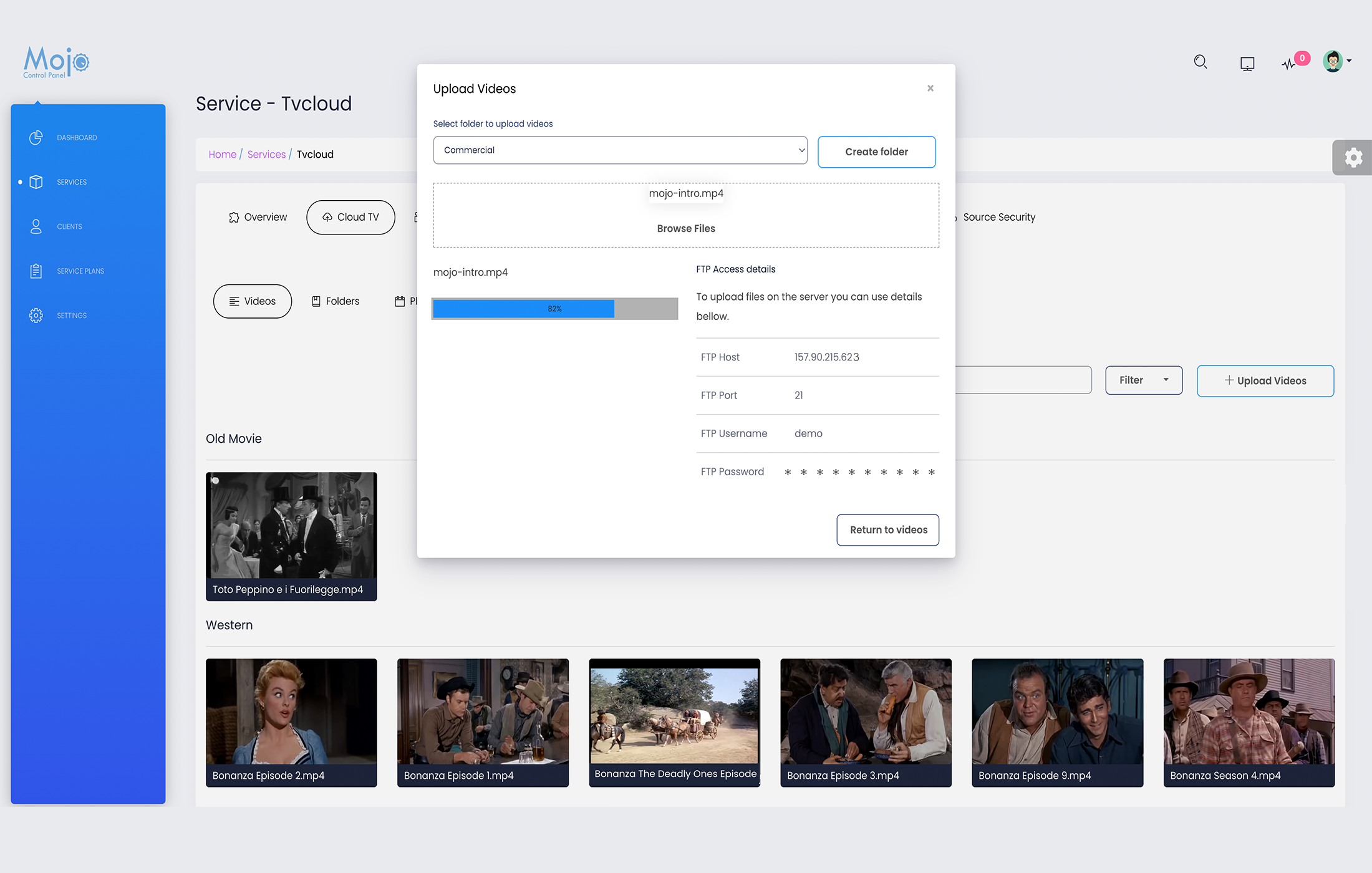
- From the MojoCP Videos Tab launch the file manager upload interface to upload file(s)
- Select the category folder you would like to upload your videos into.
- If you don’t have a Category, you can create a new Category by clicking on the Create Folder button.
- Browse file, or drag and drop one or more files from your desktop into the browse files box.
- The progress of each individual upload, and the overall queue progress, is displayed in real-time as the upload is performed. Do not refresh or navigate out from the file manager until it is completed.
- The File progress meter displays the upload progress for the current video file.
- To cancel an upload for a single file, click the icon basket icon.
- To cancel all uploads, click the Return button at the right-hand side of the dialog window.
- Once all of the progress meters display 100% this indicates that all your file(s) have been successfully uploaded.
- Once completed click on the return button to return to your videos media page.
More Videos:
Video tutorials: Cloud TV Broadcast your own internet TV station. CloudTV.