
-
For Resellers
-
-
For Clients
-
-
WHMCS Integration
CloudTv Web Page
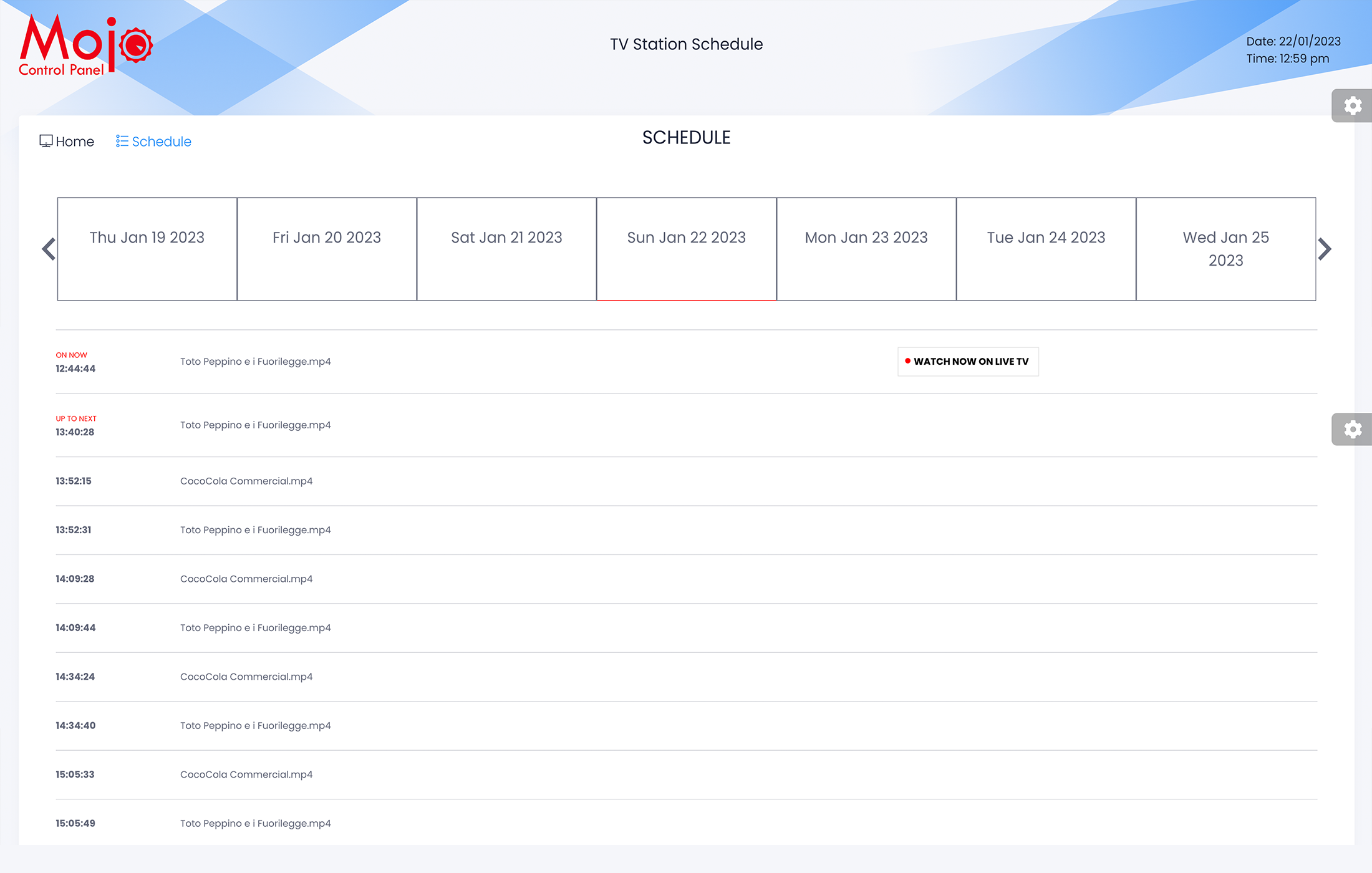
The TV Station web page is a customizable platform that allows users to watch broadcast live or pre-recorded content. It is a full customizable with the user’s own logo and social media pages links. The Schedule page on the TV Station web page, shows the current and upcoming shows, making it easy for users to stay informed about when their favorite shows are airing. It also allows them to plan their viewing schedule accordingly. This feature provides a professional look and feel to the page and helps to promote the user’s brand and engage with the audience. With the schedule page, users can easily keep track of their programming, and never miss out on their favorite shows.
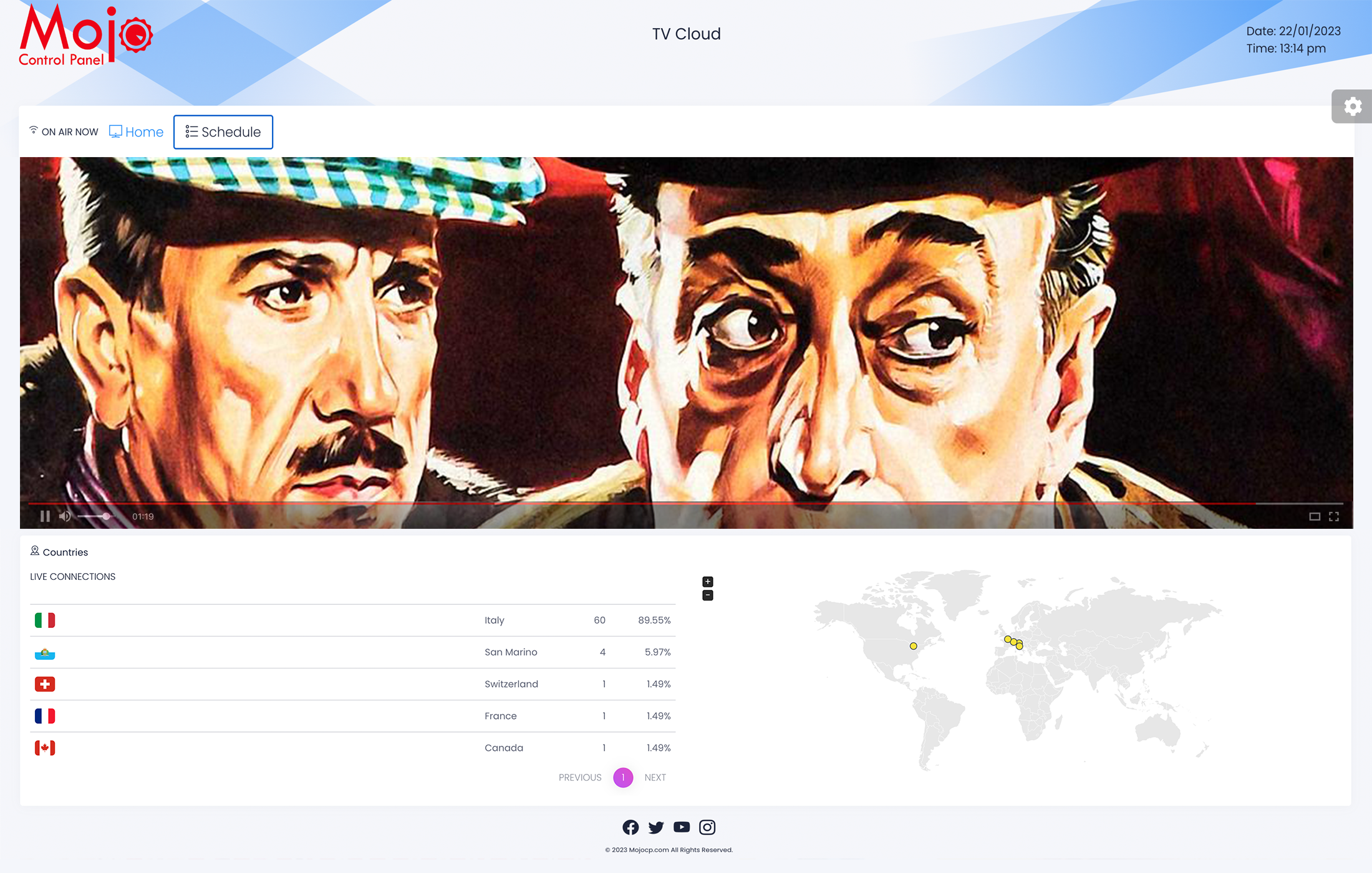
CloudTV Schedule Page
The schedule page on MojoCP allows users to easily keep track of their programming. It displays a list of shows, making it easy for users to view the current and upcoming shows, so they never miss out on their favorite programs. Additionally, the schedule page can be accessed from anywhere, making it convenient for users to check their viewing schedule on the go. Overall, the schedule page on MojoCP is a great tool and never miss out on their favorite shows.
CloudTV Integration
Coming Soon….
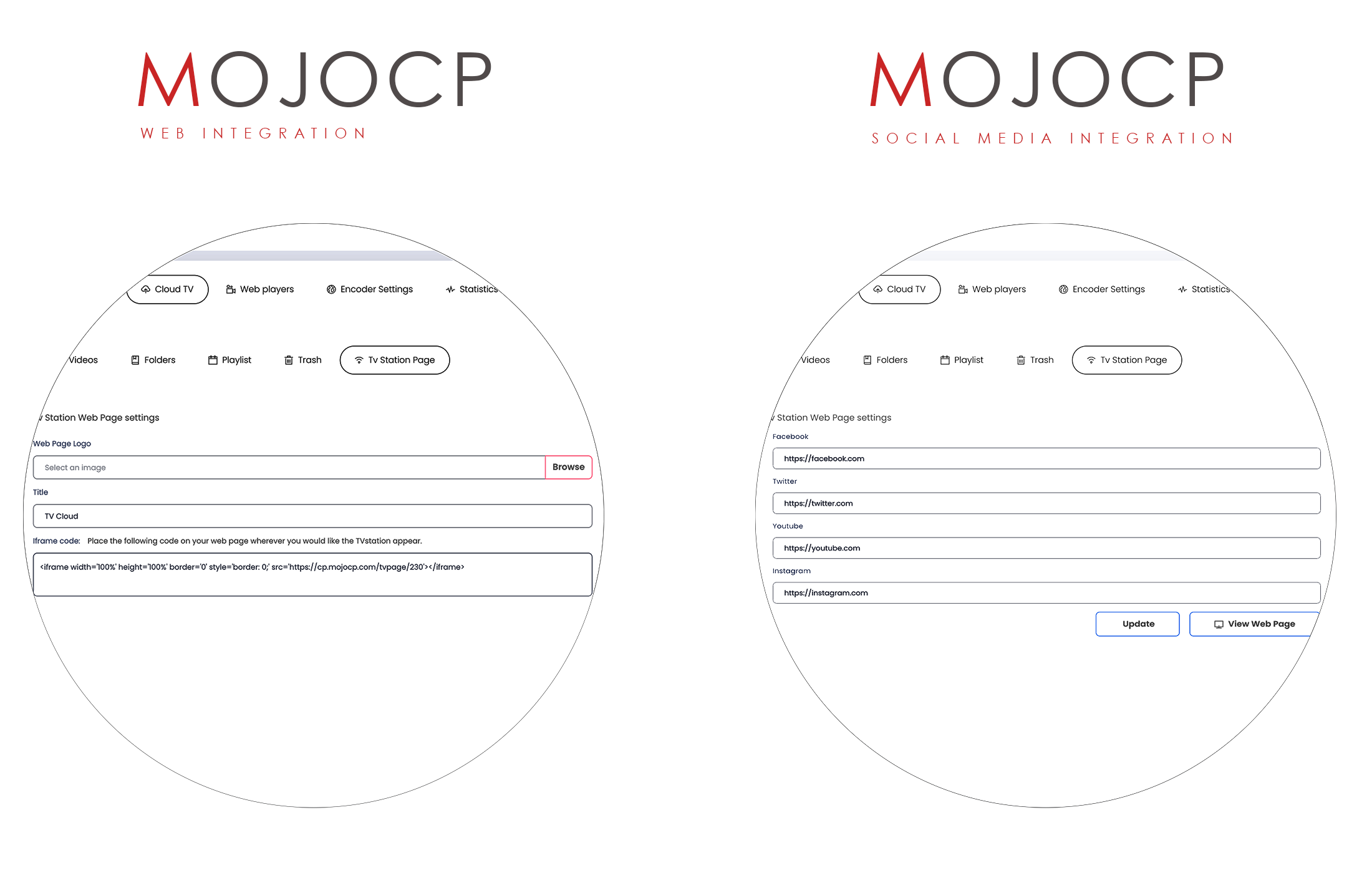
Following these steps will allow you to easily set up a custom TV station web page, complete with your own branding and social media links. With the iFrame code, you can easily embed your TV station page onto your website, making it easy for your audience to find and watch your live broadcasts.
- From the Cloud TV dashboard, select the TV Station Page tab.
- Choose the web page logo. Please note that the logo size should be no more than 512×512 pixels.
- Enter a title for your Cloud TV station. For example, “My Live TV Cloud.”
- Optionally, you can add links to your social media pages, such as Facebook, Twitter, YouTube, and Instagram.
- Click on the “Update” tab to save your changes.
- Once your changes are saved, an iFrame code will be generated for you.
- Copy the iFrame code and paste it onto your webpage wherever you want the TV station to appear.
- Click on the “View Web Page” button to preview your TV station web page.
More Videos:
Video tutorials: Cloud TV Broadcast your own internet TV station. CloudTV.