-
For Resellers
-
-
For Clients
-
-
WHMCS Integration
IP Camera Overview
The IP Camera Stream Overview provides an overview of the current status of your live stream, which typically includes the following information:
- Stream URL: The URL or address of the live stream.
- Stream Status: Indicates whether the live stream is currently active or not.
- Bitrate: The amount of data being transmitted per second in the stream, usually measured in kilobits per second (kbps) or megabits per second (Mbps).
- Resolution: The size of the video in pixels, typically displayed as width x height (e.g., 1280×720).
- FPS: The frame rate of the video, indicating the number of frames per second that are being transmitted.
- Total Viewers: The number of viewers currently watching the live stream.
- Server Status: Indicates the current status of the server or hosting platform, which can affect the quality and reliability of the live stream.
Overall, the IP Camera Stream Overview provides a snapshot of the key metrics and parameters that are relevant to the quality and performance of your live stream, allowing you to quickly assess and troubleshoot any issues that may arise.
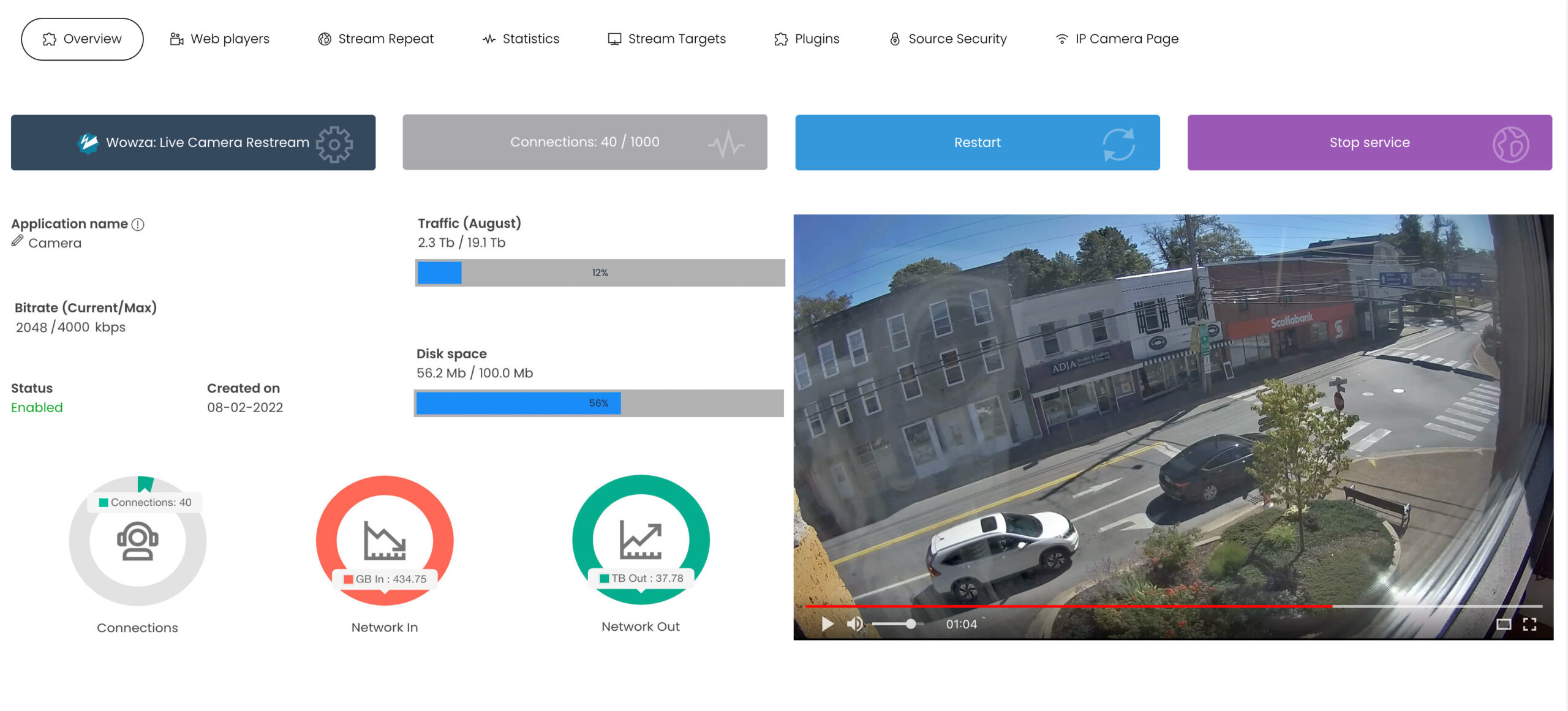
For detailed reference information regarding the overview of your IP Camera stream, please consult the: Reference Stream Overview
Configure IPCamera
From the MojoCP Platform click on stream repeat tab, to configure your IPCamera Restream.
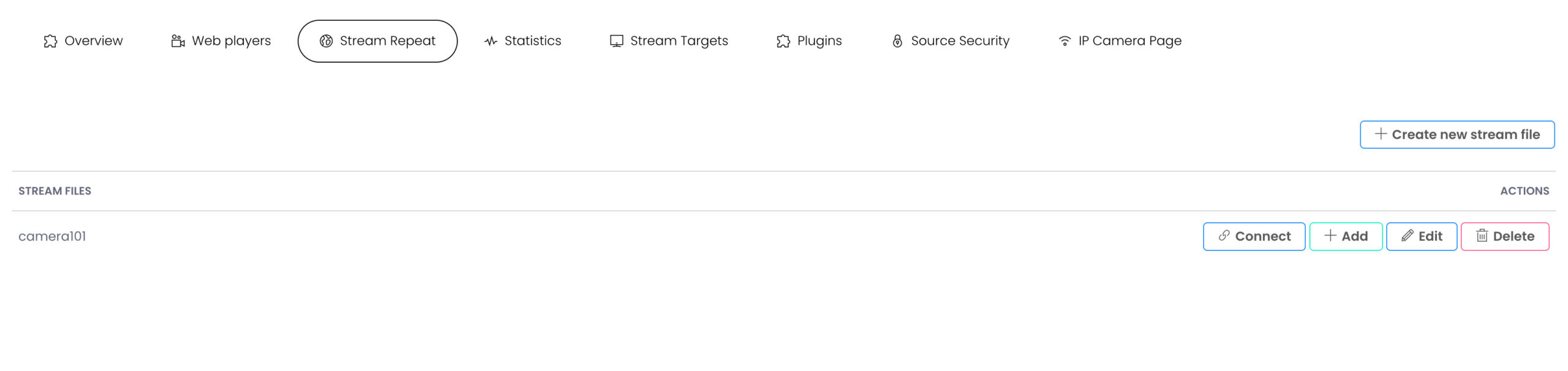
Create Stream File
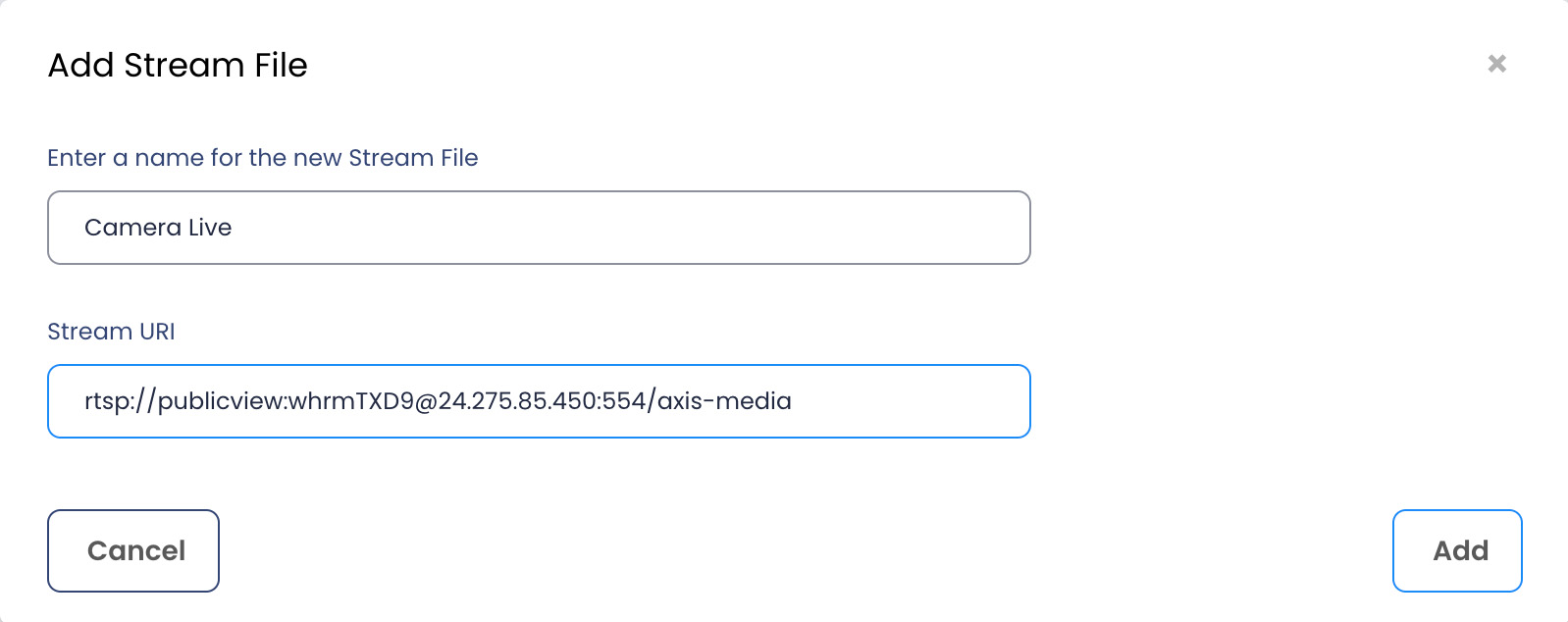
In order to add a new stream file click on “+ Create new stream” file. A popup screen will appear.
- Enter the name of your IP Camera stream.
- The rtsp stream URI of your IP Camera.
- Click Add to apply the IP Camera.
- To recreate a new stream file, ensure to remove the previews stream file, using the delete button..
- To edit and apply the new stream file, click on the Edit button.
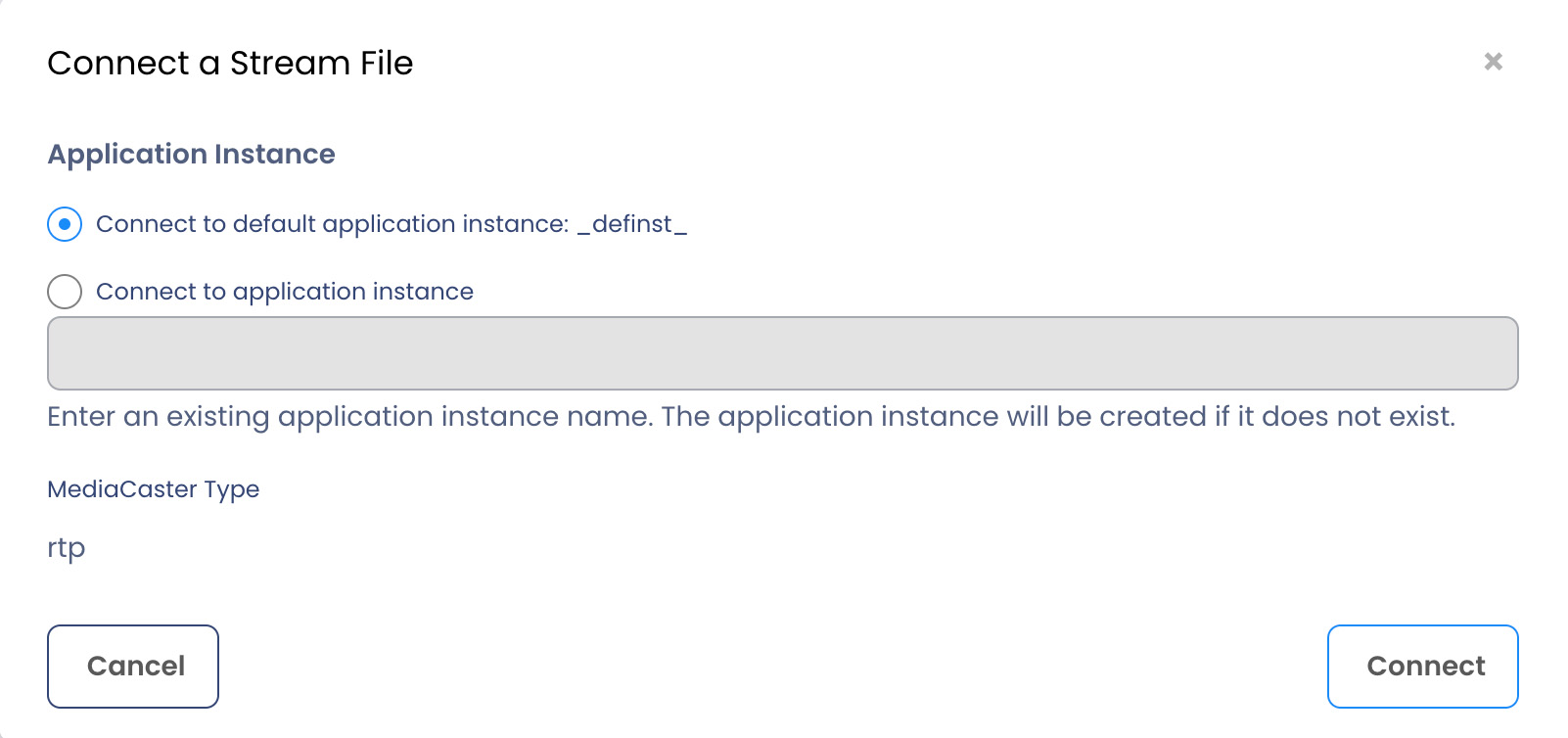
Connect a Stream File
MojoCP automatically configure and connect your stream file to the default application instance.
To apply the configurations click on the “Connect” Button to complete this action.
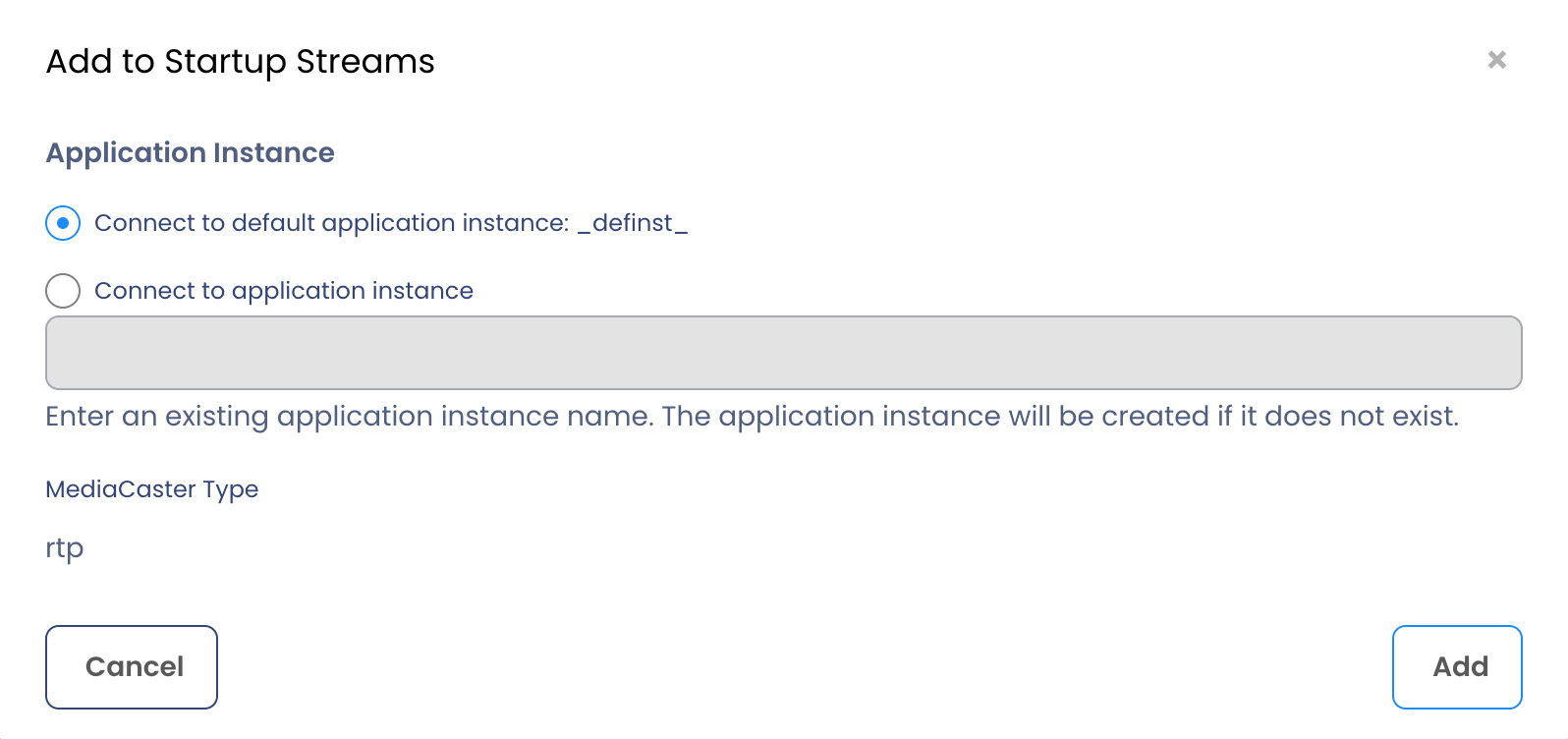
Add to Startup Streams
When the server starts, the MediaCaster system can pull streams from these sources automatically and make them available for streaming to all player technologies supported by the server. These streams must be identified in a Startup Streams list.To apply the startup click on the “Connect” Button to complete this action.