
MojoCP Documentation
-
For Resellers
-
-
For Clients
-
-
WHMCS Integration
Table of Contents
< All Topics
Print
Posted
Updated
Byadmin
Change Application Name
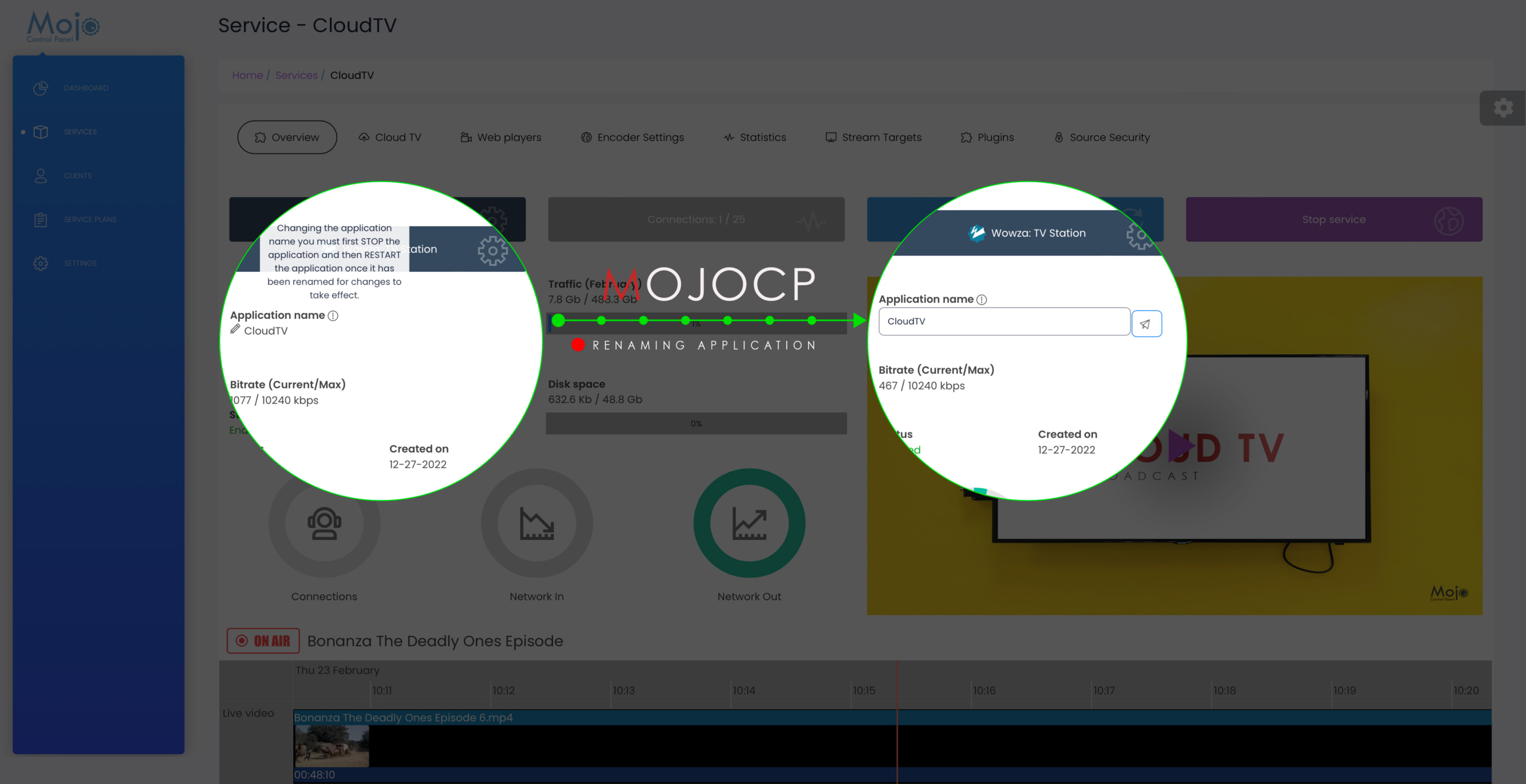
Changing the application name is an important step that requires advanced technical skills. It’s important to follow a few key steps to ensure a smooth transition. Here’s how to do it:
- Start by accessing the application you want to rename in Mojocp and navigating to the overview page.
- From there, click on the “Stop” button to halt the application.
- Find the “Application Name” field and select the pencil icon to edit the name.
- In the dialog box, enter the new Application name you want to use. (Without Space)
- Note: the new “Application” name can’t contain less-than (<), greater-than (>), quotation (‘ and “), backslash (), pipe (|), question mark (?), and asterisk (*) characters.
- Click “Submit” to save the change.
- Restart the application to apply the new name.
- Note: After changing the application name, you need to update the encoder RTMP:// and regenerate the embed player code. Any URL links outside of Mojocp with the old application name will stop working automatically.
- Check any URL links outside of Mojocp that used the old application name and update them as needed.
- Test the application thoroughly to ensure it’s functioning correctly under the new name.
(If you encounter any issues, don’t hesitate to contact your support department for assistance.)
Coming Soon…
More Videos:
Video tutorials: Reseller Guide for your reseller account. Reseller Guide