-
For Resellers
-
-
For Clients
-
-
WHMCS Integration
Quick Links
The MojoCP Quick Links feature is a convenient and user-friendly tool that provides users with a number of useful links and login information for managing and working with their video stream accounts. The Quick Links feature is easily accessible through a collapsible sidebar menu, which allows users to quickly and easily navigate through the various links and features.
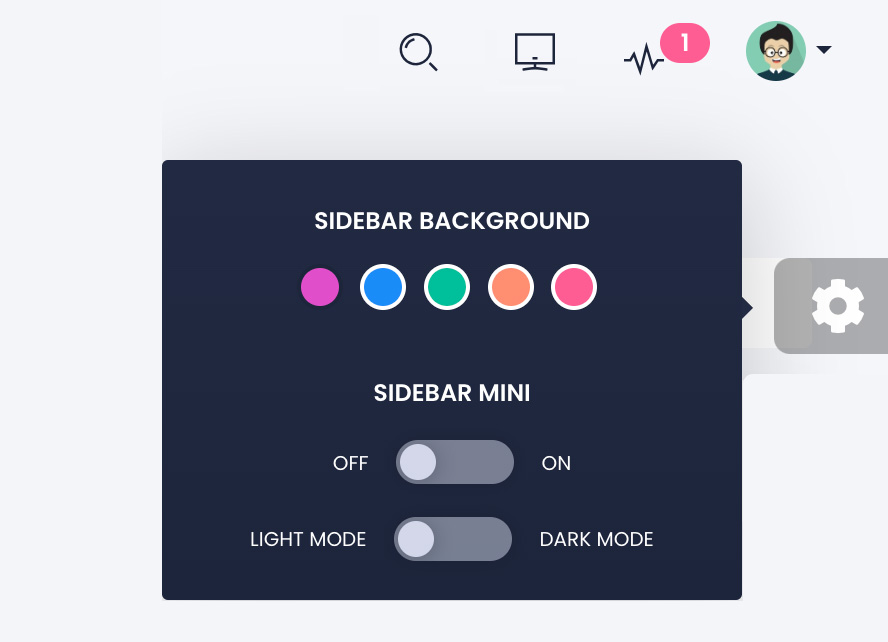
In addition to its ease of use, the Quick Links feature also offers a number of customization options, including the ability to change the sidebar background color and switch between light and dark mode web color schemes. This allows users to personalize their dashboard and optimize their workflow for their specific needs and preferences.
Overall, the MojoCP Quick Links feature is an essential tool for streamers looking to improve their workflow and streamline their video stream account management. With its intuitive design and convenient customization options, the Quick Links feature makes it easy for users to manage their accounts and access the features they need to deliver high-quality content to their audience.
Searching Services:
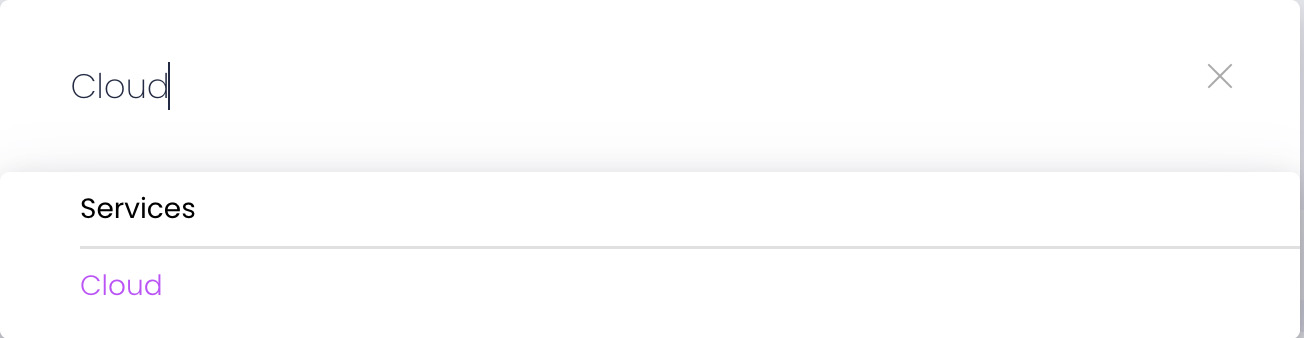
The Searching Services feature on MojoCP is a powerful and convenient tool that allows users to quickly and easily find any applications services under their account. To use this feature, simply enter a keyword in the Search box on the toolbar above the account list.
The Searching Services feature is designed to help users save time and improve their workflow by making it easy to find the specific services or applications they need. This feature is particularly useful for users with large numbers of services or applications under their account, as it allows them to quickly locate the specific service or application they need without having to manually browse through their account.
Fullscreen mode:
To use Fullscreen mode on MojoCP, follow these steps:
- Open MojoCP in your web browser.
- Look for the screen button icon above the toolbar.
- Click on the screen button icon to enter Fullscreen mode.
- To exit Fullscreen mode, press the “Esc” key on your keyboard or click the screen button icon again.
That’s it! You can now use MojoCP in Fullscreen mode for an immersive and distraction-free experience
Notifications:
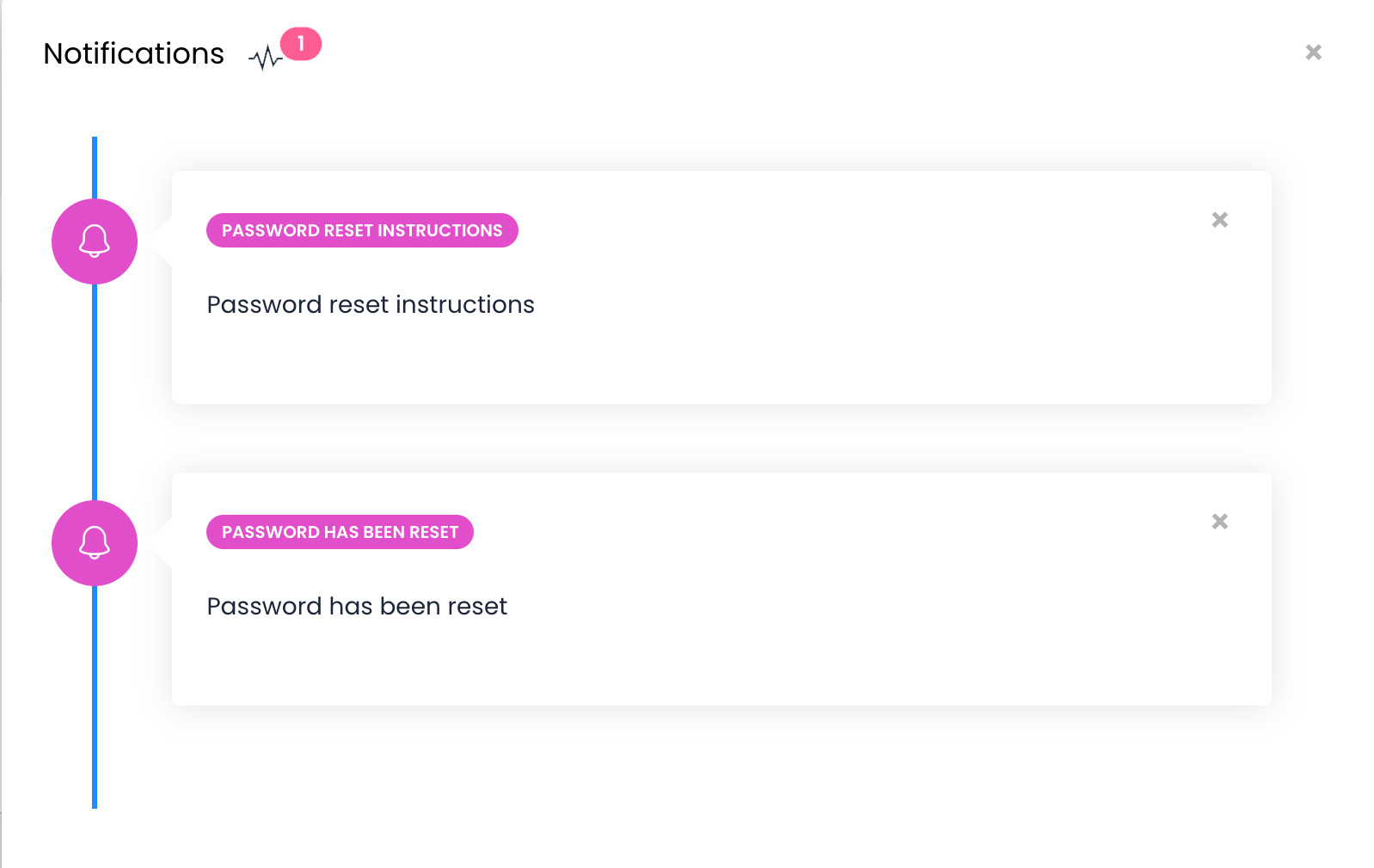
MojoCP is a platform that enables you to receive web push notifications to your account. With this feature, you can stay informed about important updates and events related to your account.
To access your notifications, simply click on the notification icon located above the toolbar. This will open a drop-down menu that displays all the notifications you have received. You can then click on a specific notification to view its details. MojoCP’s push notifications are a powerful tool that helps you stay on top of things and take action as needed.
Account settings:
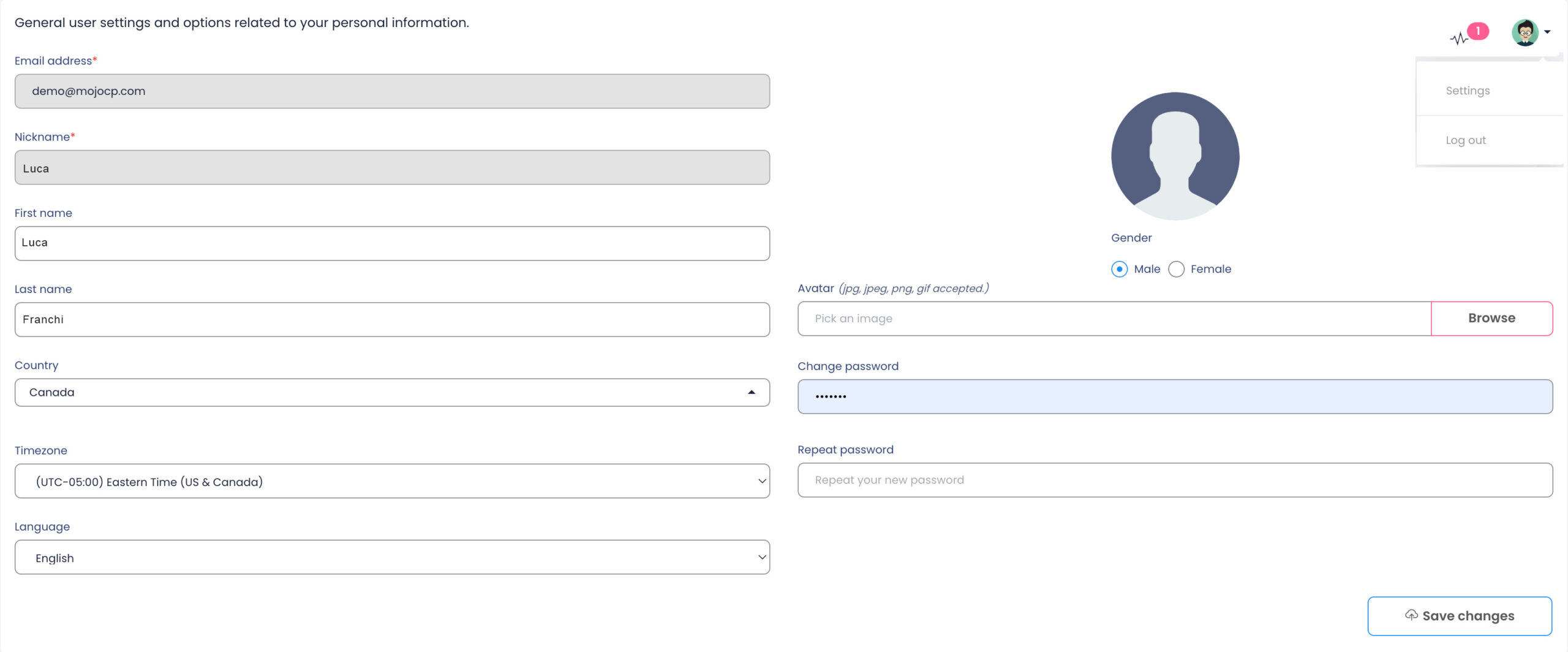
To manage your account information on MojoCP, you can click on the Avatar icon located at the top of the page. This will open up a drop-down menu with various options, including your account settings.
In the account settings, you can perform basic account management tasks such as updating your name, email address, and password. You can also customize your language, country, and time zone preferences to suit your needs.
In addition, you can manage your credentials and update your profile picture or photo. This feature allows you to personalize your account and make it more recognizable and easier to navigate.
Overall, managing your account settings on MojoCP is a simple process that can help you keep your information up to date and tailor the platform to your needs. So, be sure to take advantage of these features and enjoy a seamless user experience.