
-
For Resellers
-
-
For Clients
-
-
WHMCS Integration
Stream to Twitch Live
Twitch Stream Target is a powerful tool that enables Mojocp to deliver high-quality live video content directly to Twitch, the world’s leading live streaming platform for gamers. With Twitch Stream Target, Mojocp can help our clients leverage the power of live streaming to reach new audiences, build communities, and drive engagement.
As a Twitch Partner, Mojocp has the expertise to help our clients deliver high-quality live video content that is optimized for Twitch’s audience. Our team of experts works closely with our clients to develop a customized streaming plan, including setting up cameras and microphones, optimizing network settings, and managing the entire streaming process.
Mojocp’s Twitch Stream Target solution is designed to provide the best possible viewing experience for our clients’ audience. We use adaptive bitrate streaming to deliver high-quality video to viewers on any device, regardless of their network conditions. Additionally, we provide detailed analytics and reporting to help our clients track the success of their live video content on Twitch.
Using Twitch Stream Target, Mojocp can help our clients expand their audience and reach new viewers. By leveraging Twitch’s social features, our clients can engage with their audience in real-time, answer questions, and build a more intimate connection with their followers.
Overall, Twitch Stream Target is an essential tool for Mojocp and our clients who want to increase engagement with their audience and reach a wider audience on the popular live streaming platform for gamers. With the ability to stream high-quality live video content to Twitch, Mojocp can help our clients take their online presence to the next level and achieve their goals.
This article explains how to configure Twitch on MojoCP so that you can send a single live stream to the Twitch Live network for distributed delivery. Existing stream targets are not active until this feature is enabled.
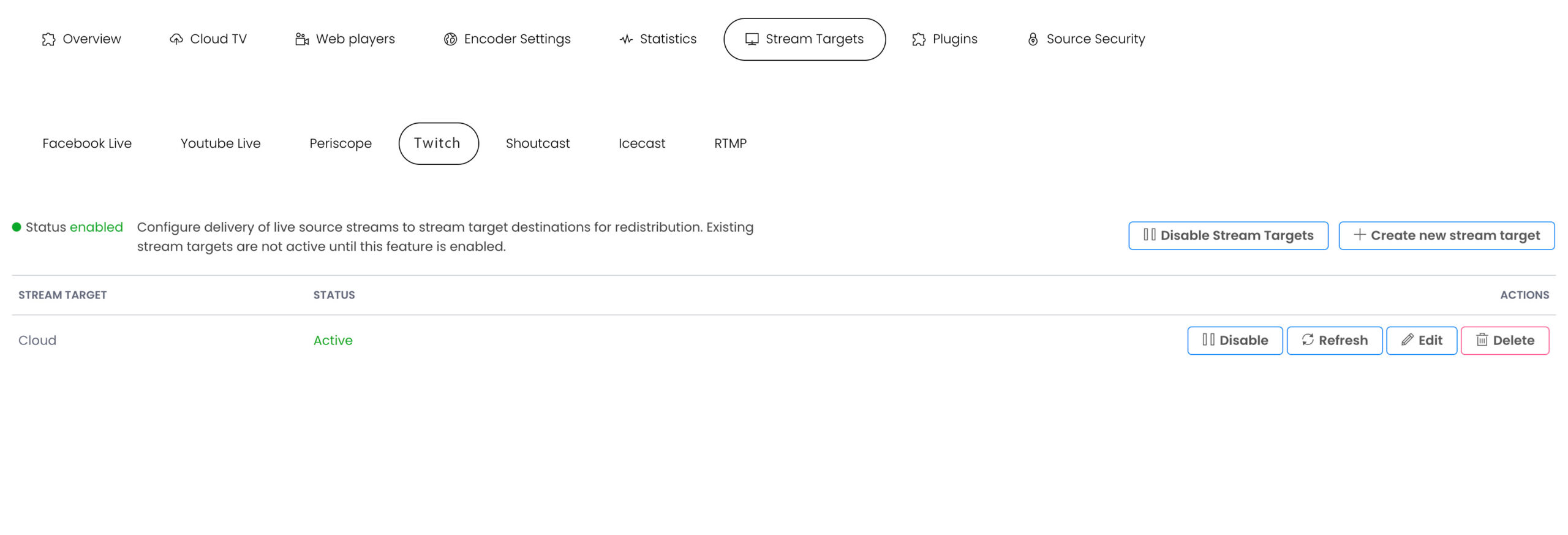
Configure Twitch stream target
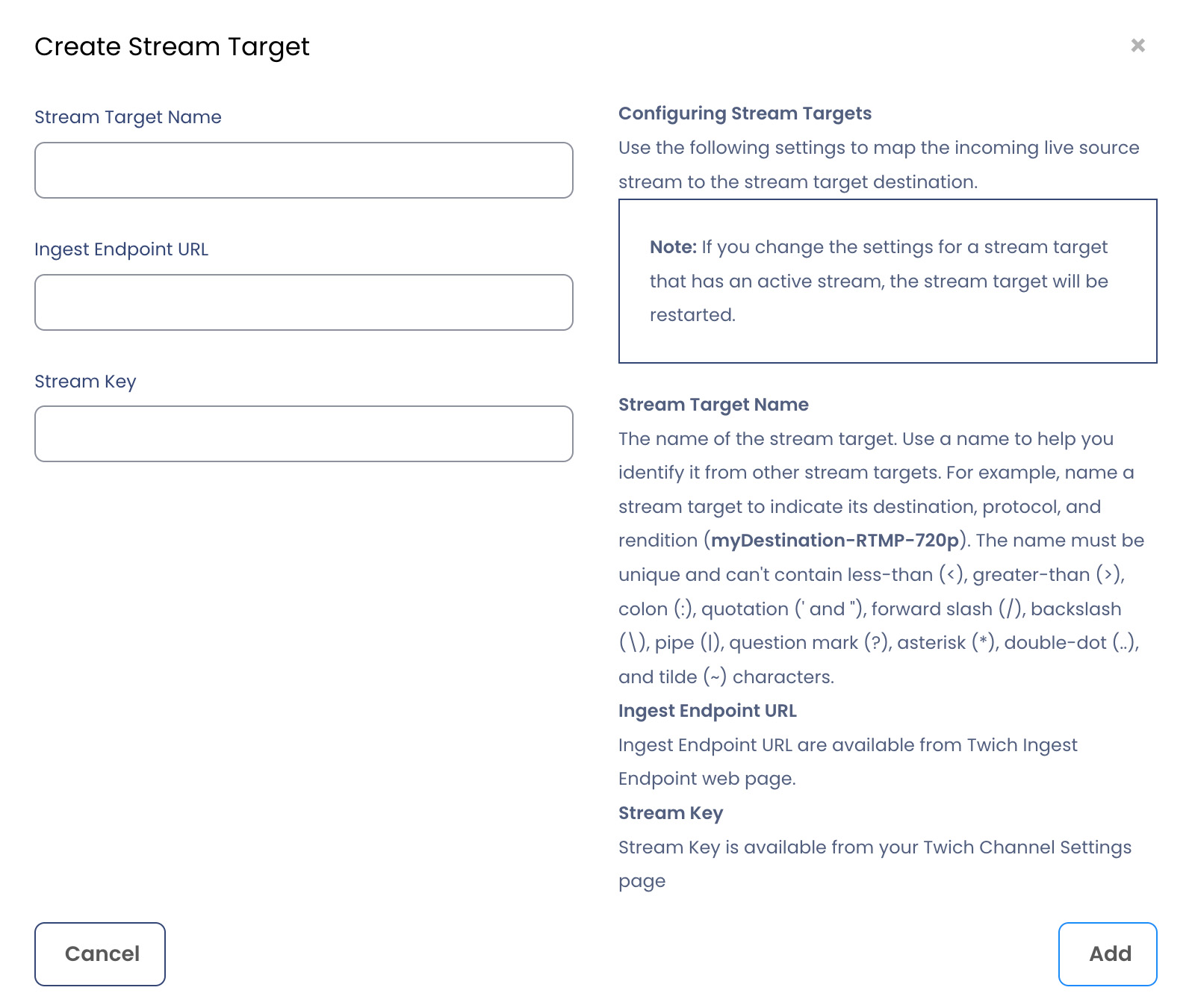
Use the following settings to map the incoming live source stream to the stream target destination.
Note: If you change the settings for a stream target that has an active stream, the stream target will be restarted.
- 1 From MojoCP click on the Stream Target Tab.
- 2 Enable Stream Targets.
- 3 Create New Stream Target.
- 4 Enter the Stream Target name in the dialog box, specify a unique name target as two stream targets can’t have the same name.Use a name to help you identify it from other stream targets. For example, name a stream target to indicate its destination, protocol, and rendition (My-Twitch-Live). The name must be unique and can’t contain less-than (<), greater-than (>), colon (:), quotation (‘ and “), forward slash (/), backslash (\), pipe (|), question mark (?), asterisk (*), double-dot (..), and tilde (~) characters.
- 5 Ingest Endpoint URL
Ingest Endpoint URL are available from Twich Ingest Endpoint web page.
Twitch Ingest Endpoints web page. - 6 Stream Key
Stream Key is available from your Twich Channel Settings page. - 7 Publish
Click on “Add” to publish your live on Twitch.
Twitch
The RTMP URL for Twitch can vary depending on your location, as they have multiple ingest servers around the world.
Twitch provides a list of RTMP URLs based on location here. Choose the RTMP URL that reflects the closest geographical location to where you are streaming from. Paste it into Ingest Endpoint URL field under Stream Target Name. Make sure you do not include the {stream key} they show in the sample URL.
Next, you will need to find your stream key. Log in to your Twitch account and navigate to the Creator Dashboard.
Under the hamburger menu, navigate to Preferences > Channel. Your stream key will be at the top of the page. Copy it to your clipboard and paste it into the Stream Key field .
Twitch provides more information about recommended encoder settings here
More Videos:
Video tutorials: Use the stream targets to simulcast to any media platforms. Stream Targets.