-
For Resellers
-
-
For Clients
-
-
WHMCS Integration
Folders "Category"
The Folders feature allows users to create and organize their videos and commercials into different categories, making it easier to find and access specific content. The ‘Move To’ feature offers a convenient way to move selected videos to different folders, allowing for further organization and customization of the video library.
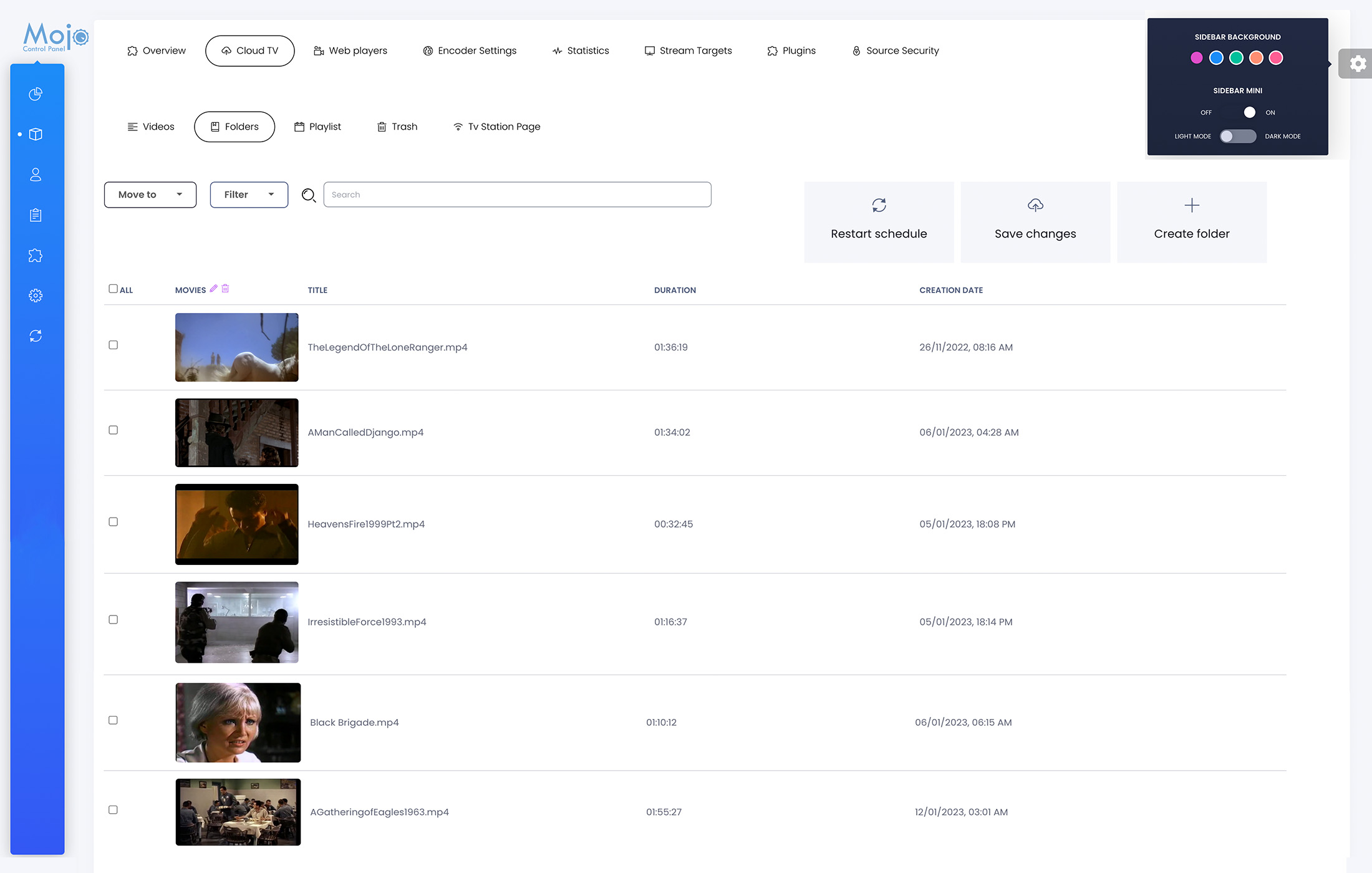
Move videos to a different category
To move a video file to a different category, first, select the video you wish to move, then use the ‘Move To’ feature to navigate to the desired category and place the video in that folder. This will organize the video into the new category, making it easier to find and access in the future.
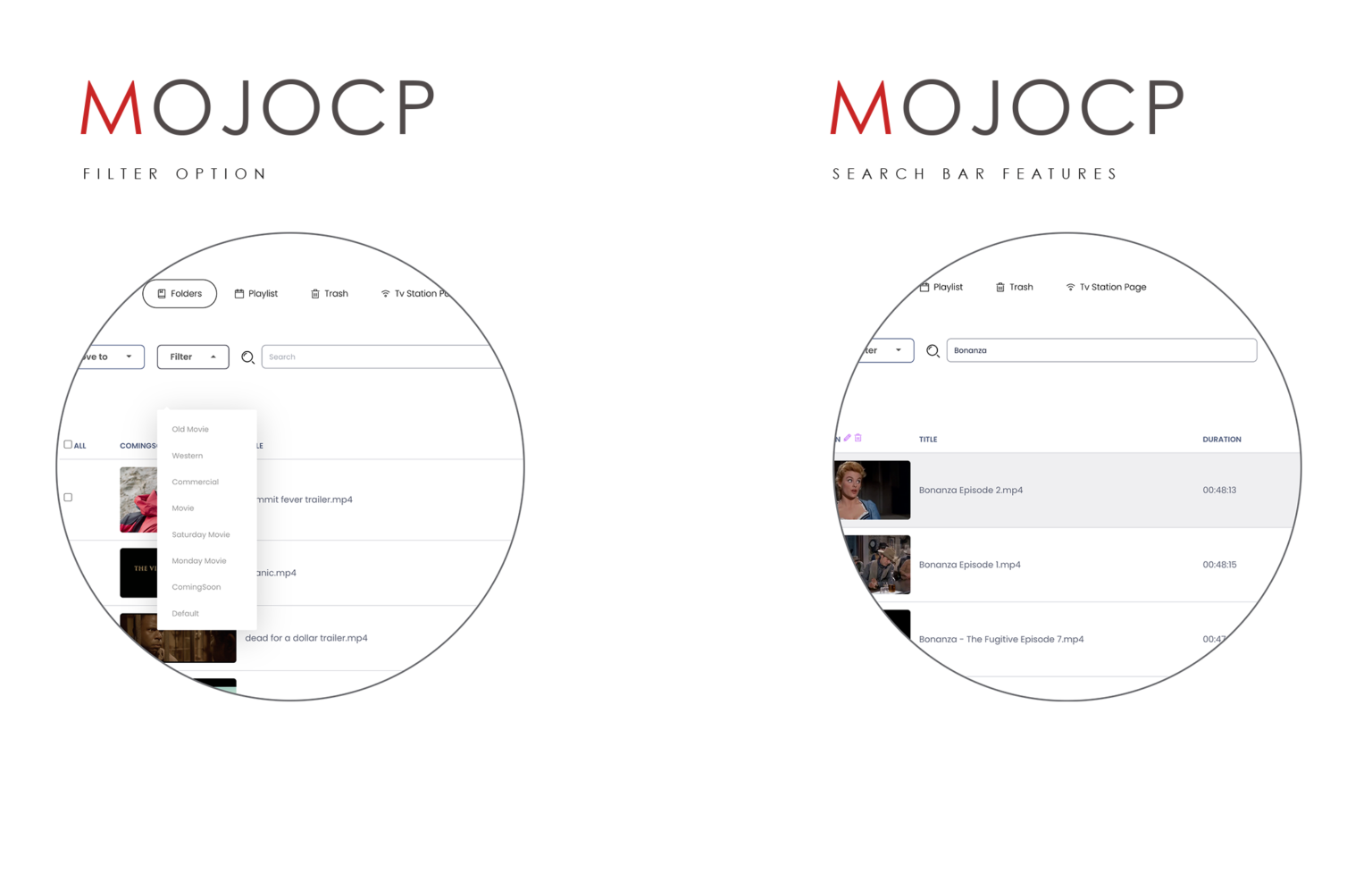
- Select the Category folder, by using the filter option.
- Select the file you would like to move and use the ‘Move To’ feature to place the video to a different category.
- Save to apply the changes and restart the schedule.
Filter Categories
The filter by category feature allows users to narrow down their search and view only the videos that belong to a specific category. This feature enables the users to sort and filter their video library by the categories they have created. Users can select a category from a list or drop-down menu, and the system will only show the videos that have been assigned to that category. This feature helps users to quickly access specific videos and saves time when searching through a large video library.
- Click the “filter “option, select a category from a list or drop-down menu,
to view only the videos that belong to a specific category. - Use the search bar features to narrow down your search, for easily find the video you’re looking.