
-
For Resellers
-
-
For Clients
-
-
WHMCS Integration
Company Logo.
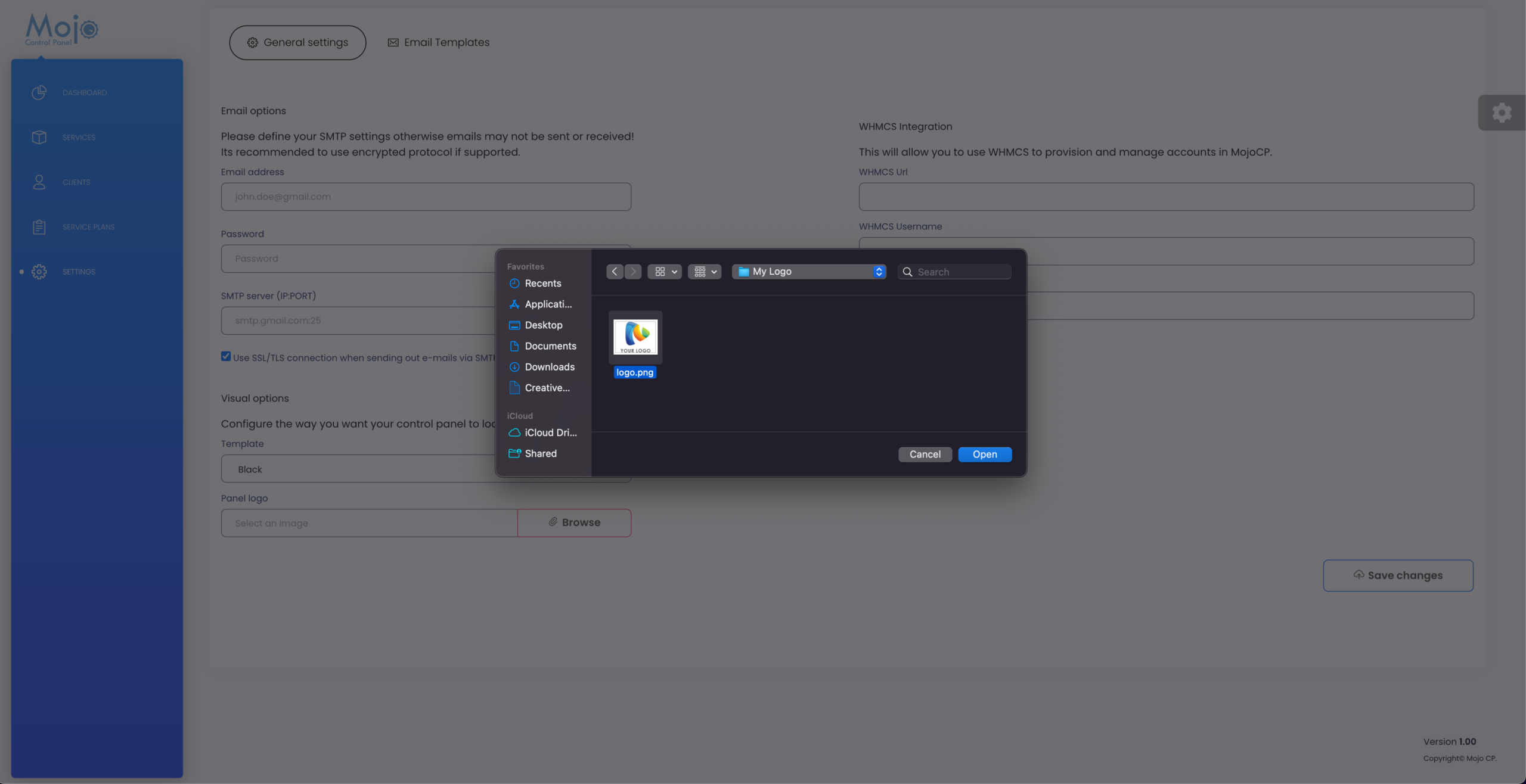
To configure the way you want your control panel to look by uploading your panel logo, follow these steps:
Log in to your MojoCP dashboard and click on the “Settings” option on the left-hand menu.
Scroll down to the “Panel Logo” section located at the bottom left of the screen.
Click on the “Browse” button to select a logo from your local computer. The accepted file formats for logos are JPEG, JPG, PNG, WEBP, and SVG.
Once you have selected your logo, it will be automatically cropped to fit the logo area. You can preview the logo before finalizing the changes.
Click on the “Save Changes” button to save the logo and make it the default logo for your control panel.
By following these steps, you can easily customize your MojoCP control panel to display your own brand logo, giving it a professional and personalized look.
Coming Soon…
More Videos:
Video tutorials: Reseller Guide for your reseller account. Reseller Guide