-
For Resellers
-
-
For Clients
-
-
WHMCS Integration
Stream to Facebook Live
Facebook Stream Target is an essential tool for Mojocp to deliver live video content directly to the world’s largest social media platform, Facebook. As a Facebook Media Solutions Partner, Mojocp has the expertise to help our clients deliver high-quality video content to their audiences on Facebook.
With Facebook Stream Target, Mojocp can reach a wider audience and enhance engagement with our clients’ followers. We can help our clients create and deliver live video content that resonates with their audience and drives real results. Our team of experts works closely with our clients to develop a customized streaming plan, including setting up cameras and microphones, optimizing network settings, and managing the entire streaming process.
Mojocp’s Facebook Stream Target solution is designed to provide the best possible viewing experience for our clients’ audience. We use adaptive bitrate streaming to deliver the highest quality video to viewers on any device, regardless of their network conditions. We also provide detailed analytics and reporting to help our clients track the success of their live video content on Facebook.
Overall, Facebook Stream Target is an essential tool for Mojocp and our clients who want to increase engagement with their followers and reach a wider audience. With the ability to stream high-quality video content to the world’s largest social media platform, Mojocp can help our clients take their online presence to the next level and achieve their goals.
This article explains how to configure Facebook on MojoCP so that you can send a single live stream to the Facebook Live network for distributed delivery. Existing stream targets are not active until this feature is enabled.
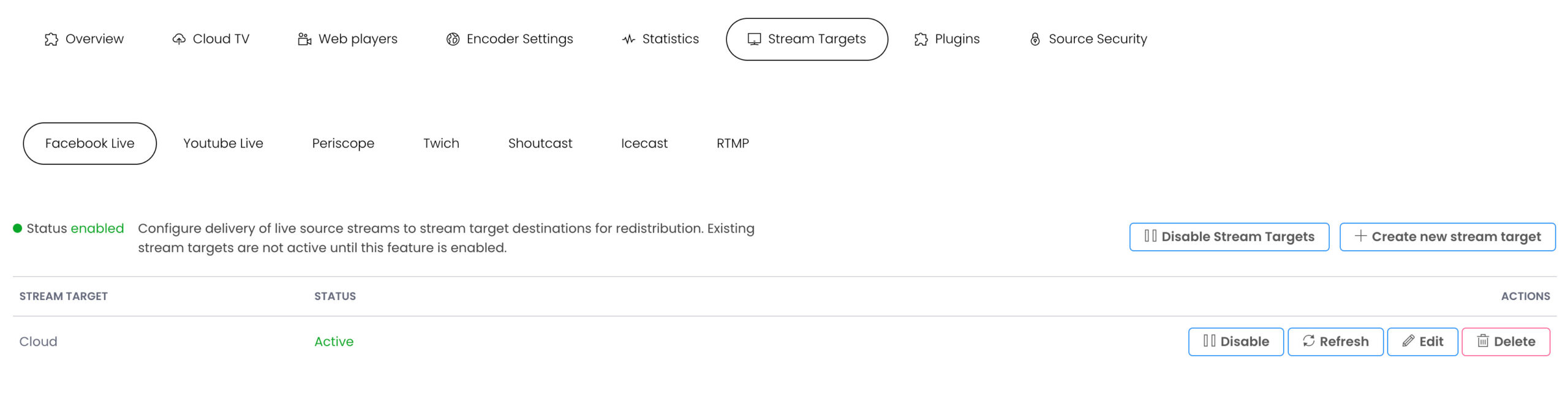
Configure Facebook stream target
Note: Facebook prohibits you from simultaneously streaming to Facebook Live and other online services.
You can, however, broadcast to your Facebook page and your own website.
- 1 From MojoCP click on the Stream Target Tab.
- 2 Enable Stream Targets.
- 3 Create New Stream Target.
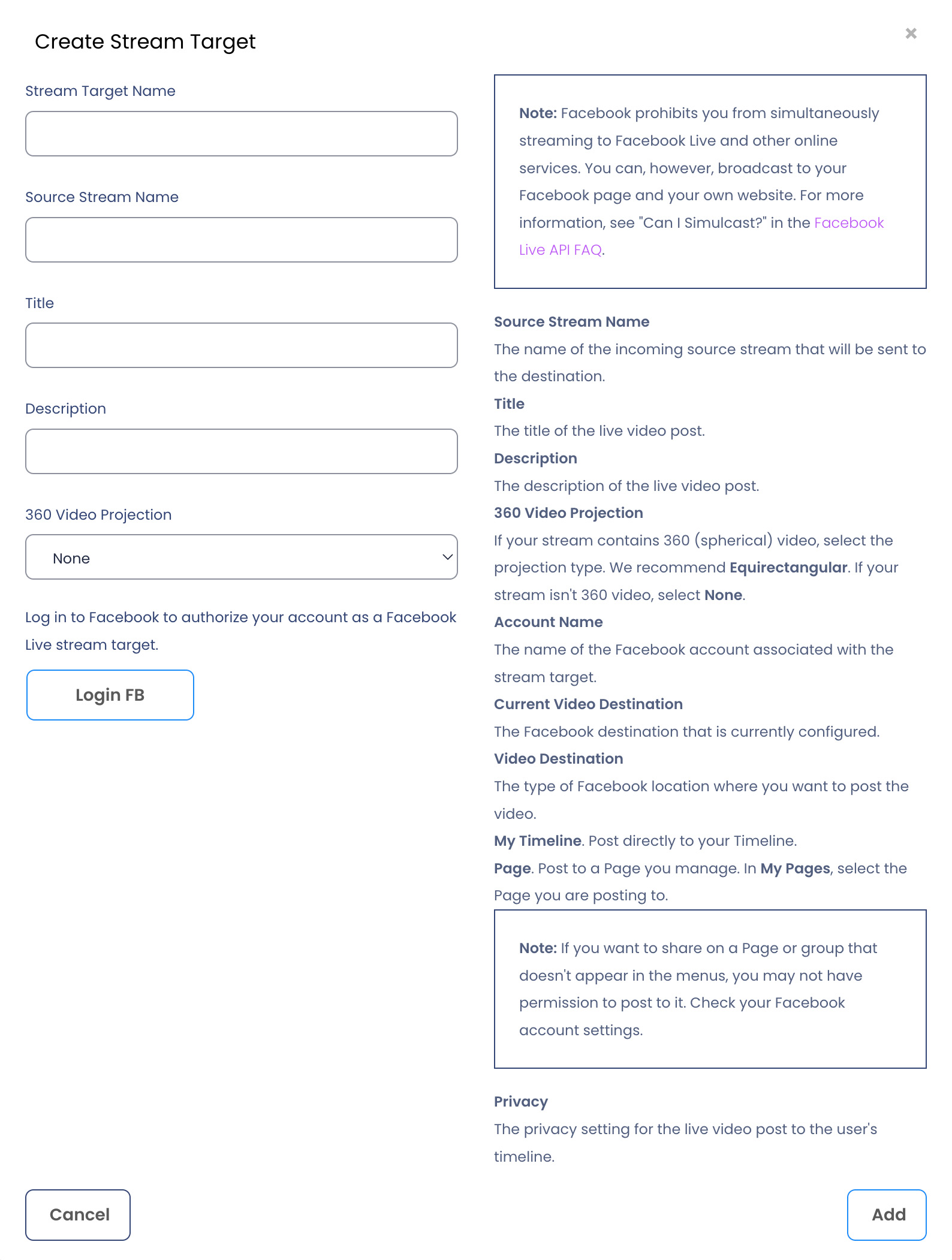
- 4 Enter the Stream Target name in the dialog box, specify a unique name target as two stream targets can’t have the same name. Use a name to help you identify it from other stream targets. For example, name a stream target to indicate its destination, protocol, and rendition (My Facebook Live). The name must be unique and can’t contain less-than (<), greater-than (>), colon (:), quotation (‘ and “), forward slash (/), backslash (\), pipe (|), question mark (?), asterisk (*), double-dot (..), and tilde (~) characters.
- 5 Source Stream Name
The Application name of the incoming source stream that will be sent to the destination. This can be found under the Overview Tab “Application Name” - 6 Title
The title of the live video post. - 7 Description
The description of the live video post. - 8 360 Video Projection
If your stream contains 360 (spherical) video, select the projection type.
We recommend Equirectangular. If your stream isn’t 360 video, select None. - 9 Click Login to FB
Follow the steps below to complete the configurations. - 10 Account Name
The name of the Facebook account associated with the stream target. - 11 Current Video Destination
The Facebook destination that is currently configured. - 12 Video Destination
The type of Facebook location where you want to post the video. - 13 My Timeline. Post directly to your Timeline.
- 14 Page. Post to a Page you manage. In My Pages, select the Page you are posting to.
Note: If you want to share on a Page or group that doesn’t appear in the menus, you may not have permission to post to it. Check your Facebook account settings.
More Videos:
Video tutorials: Use the stream targets to simulcast to any media platforms. Stream Targets.