-
For Resellers
-
-
For Clients
-
-
WHMCS Integration
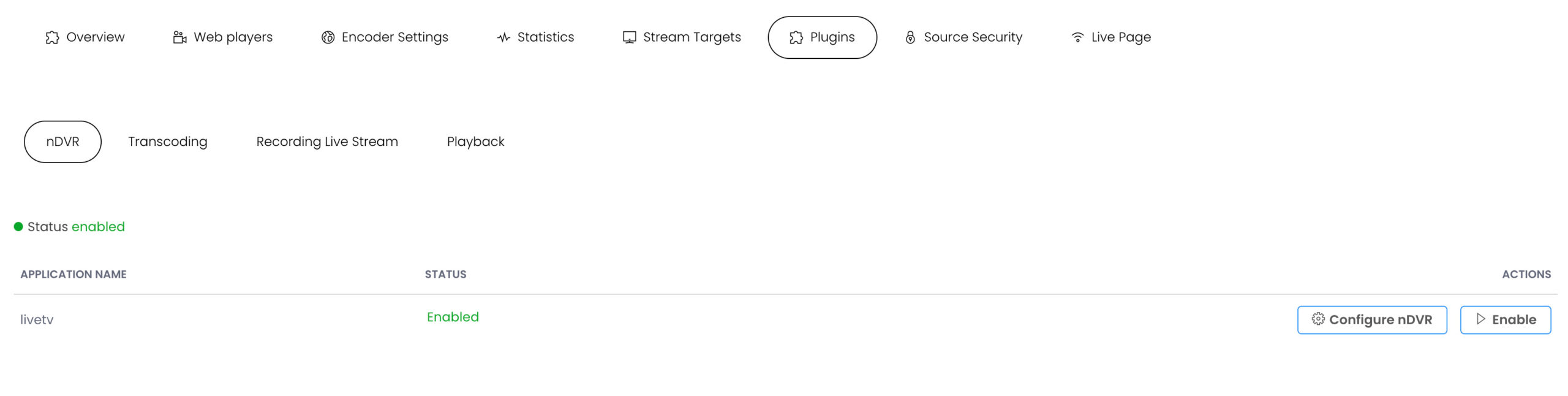
About MojoCP nDVR
nDVR, or network digital video recording, is a powerful tool that allows your viewers to watch live video streams while being able to pause, rewind and replay content as they wish. This is particularly useful for sporting events, concerts, and other live events where viewers may want to go back and watch specific moments that they missed or want to see again.
At Mojocp, we offer a state-of-the-art nDVR solution that seamlessly integrates with your live streaming platform. Our nDVR technology allows you to store live video streams in the cloud, giving your viewers the flexibility to watch recorded content on-demand, without any impact on your live broadcast.
With our nDVR solution, you can provide your audience with an unparalleled viewing experience, allowing them to enjoy your content at their convenience. Whether you’re streaming live events or producing your own content, nDVR from Mojocp is an essential tool for anyone looking to take their live streaming to the next level.
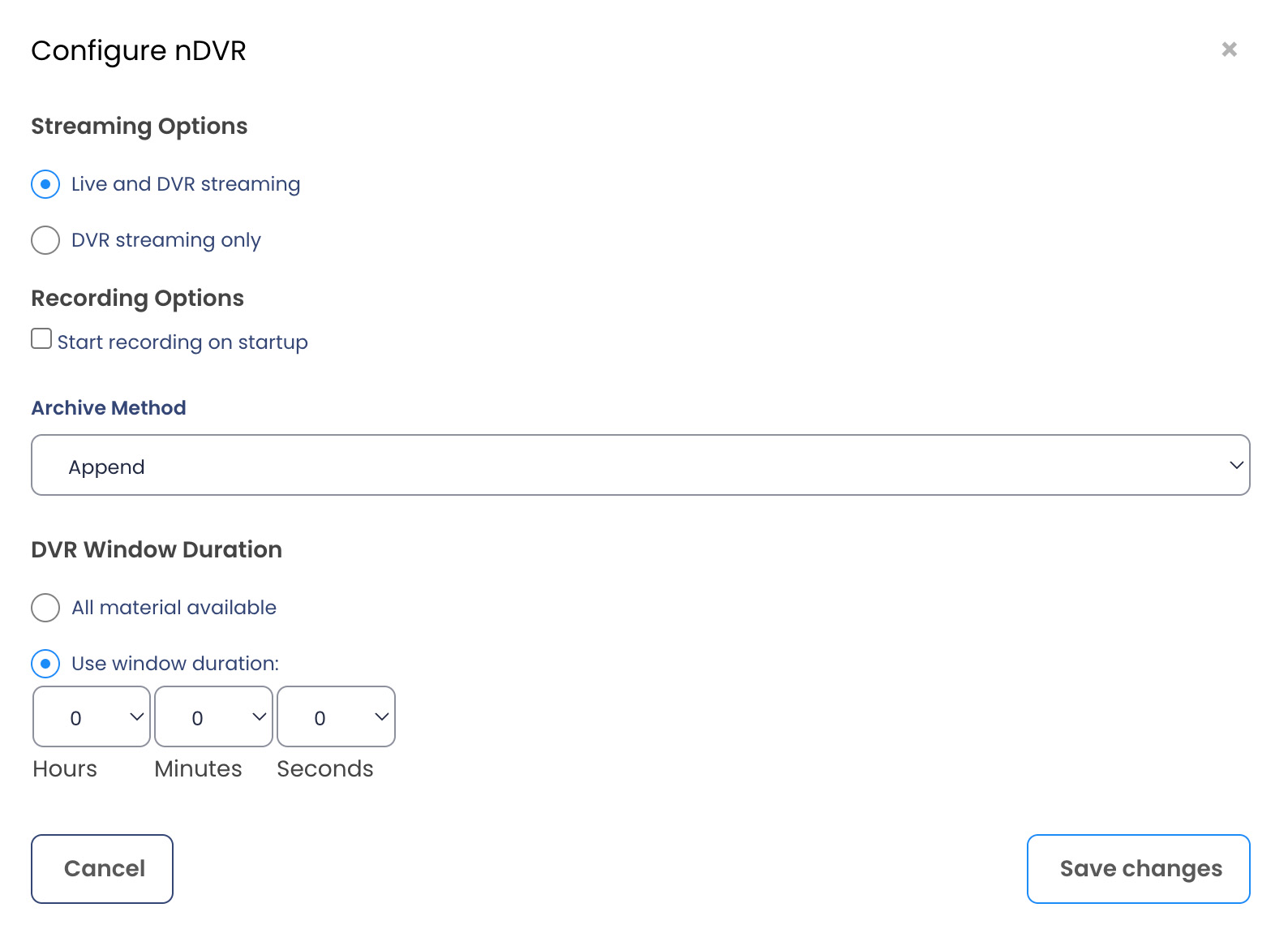
Streaming Options
Specifies how an incoming live stream can be played back by indicating whether the ?DVR query parameter must be appended to playback URLs.
To specify that a live stream can be played with or without the DVR playback controls in a player, select Live and DVR streaming. This option means that the live stream is available for playback with or without the ?DVR query parameter appended to playback URLs. If ?DVR isn’t appended to the playback URL, the live stream can still be played but DVR playback isn’t supported.
To specify that a live stream can only be played using the DVR playback controls in a player, select DVR streaming only. This option means that the ?DVR query parameter must be appended to playback URLs.
Start Recording on Startup
Enables you to automatically start recording a live stream that’s published to the server for DVR.
Archive Method
Defines what to do with a recording if a new stream with the same stream name is published to this application. The default option (append) appends the new stream to the existing recording and is best to use as a failsafe mechanism to account for disruptions in the current live stream (such as encoders restarting). The delete option deletes the previous recording and starts a new one. The version option starts recording the new stream to a new folder in the DVR store.
DVR Window Duration
Specifies the amount of recorded material in the DVR store that’s available for DVR playback.
To make the entire recording available for playback, select All material available. This option enables viewers who join the live stream in-progress to rewind and watch the stream from the beginning. This option also preserves the live stream recording after the stream ends.
To make only part of the live stream available for playback, select Use window duration and then specify the duration in Hours:Minutes:Seconds. The minimum supported duration value is 60 seconds.
This option enables viewers who join the live stream in-progress to rewind the stream for the duration that you specify and watch from that point forward. The duration window is a ‘floating window’ that always ends at the current live point. Recorded data that falls outside this window is purged from the DVR store.
You can record up to 30 hours of material for DVR playback; however, you may encounter performance and playback issues if you make longer durations of material available for playback.