
-
For Resellers
-
-
For Clients
-
-
WHMCS Integration
About MojoCP Transcoder
At Mojocp, we offer a powerful transcoding solution that enables you to deliver your live video streams to a wider audience with superior quality and performance. Our transcoding technology converts your video streams into multiple bitrates and resolutions, allowing your viewers to experience your content in the highest quality possible, regardless of their device or network speed.
With our transcoding solution, you can reduce the bandwidth required to stream your content while maintaining the highest quality, which results in a better viewing experience for your audience. This is especially important for live events where a high-quality stream is essential to capturing the attention of your viewers.
Our transcoding technology also allows you to deliver your content in a wide range of formats and codecs, ensuring compatibility with a wide range of devices and platforms. This ensures that your audience can view your content no matter what device they are using, making it easier for you to reach a wider audience.
At Mojocp, we understand that transcoding is an essential component of any live streaming platform, which is why we offer a powerful and flexible solution that is designed to meet the needs of your business. Contact us today to learn more about how our transcoding technology can help take your live streaming to the next level.
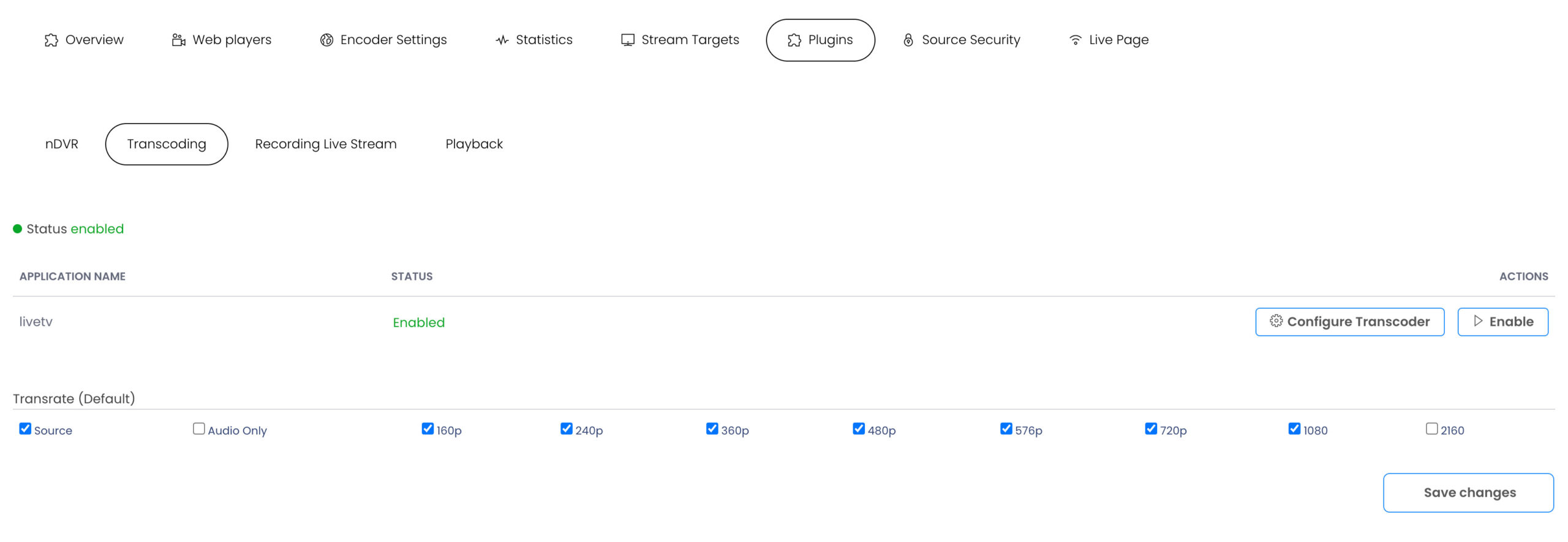
Templates
Transcoder Templates
Transcoder templates enable you to customize the video and audio encoding parameters to target multiple playback devices. You can apply different encoding settings to an application or stream using one or more templates. The following default templates are included:
Audio Only. Used to ingest an H.264 video/Speex audio source stream from Adobe Flash Player. The Speex audio format is converted to AAC to make the stream compatible with additional player technologies.
Transcode. Used to ingest a source stream that isn’t encoded with H.264 video and/or AAC or MP3 audio. The transcoded output has multiple bitrates, each encoded with H.264 video and AAC or MP3 audio, that are keyframe-aligned for adaptive streaming.
Transcode H.265. Used to transcode source streams into H.265 video and AAC audio. The transcoded output has multiple bitrates that are keyframe-aligned for adaptive streaming.
Transrate. Used to ingest a source stream that’s encoded with H.264 video and AAC or MP3 audio. The transrated output has multiple bitrates that are keyframe-aligned for adaptive streaming. The highest output bitrate is the original source stream.
Configuring
Configuring Transcoder
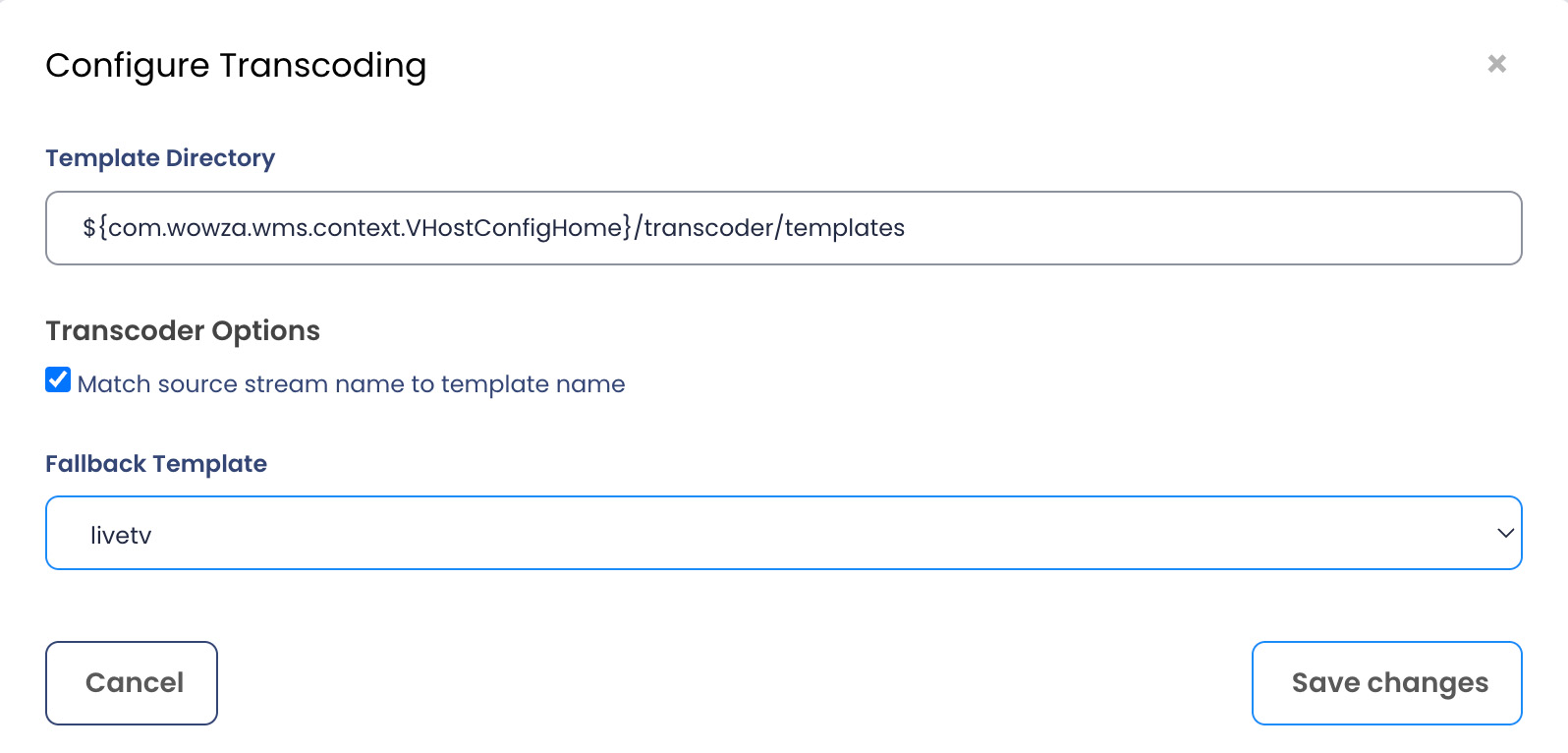
To configure Transcoder for your live application, click Edit and do the following:
1) The default Template Directory stores transcoder templates that are available to the server and all live applications. To specify that a custom transcoder template is only available to this application, store it in an application-specific directory by changing the Template Directory path value. The directory path value can’t contain less-than (<), greater-than (>), quotation (‘ and “), backslash (\), pipe (|), question mark (?), and asterisk (*) characters.
2) Configure the default transcoder templates or add and configure a custom transcoder template. You can ensure that an incoming stream is processed by a specific template by creating a template with the same name as the stream name. The default transcoder templates are only available if the default Template Directory is used.
3) To specify that the incoming stream name always be processed by your custom transcoder template with the same name, select Match incoming stream name to template name. When this option is selected, the incoming stream name is processed by your transcoder template with the same name if it exists. If the incoming stream name and template name differ or if the template doesn’t exist, then the template that’s selected in the Fallback Template list is used instead.
4) To specify that the incoming stream name always be processed by a specific transcoder template, clear Match incoming stream name to template name, and then select the template that you want to use in the Fallback Template list.
5) Click Save and then click Enable Transcoder.
Subscription
Transcoder Subscription.
Depending on your stream plan terms, your account may be charged when you enable it, for more info contact your stream provider.