
-
For Resellers
-
-
For Clients
-
-
WHMCS Integration
CloudTv Playlist
Introducing TV Station Cloud on MojoCP – a revolutionary TV-style streaming service that allows you to schedule programs and insert video content into your live streams. With the ability to seamlessly switch between playlist and live streaming, viewers will never have to disconnect. Plus, our service is compatible with live encoding tools and media players for an easy and seamless streaming experience.
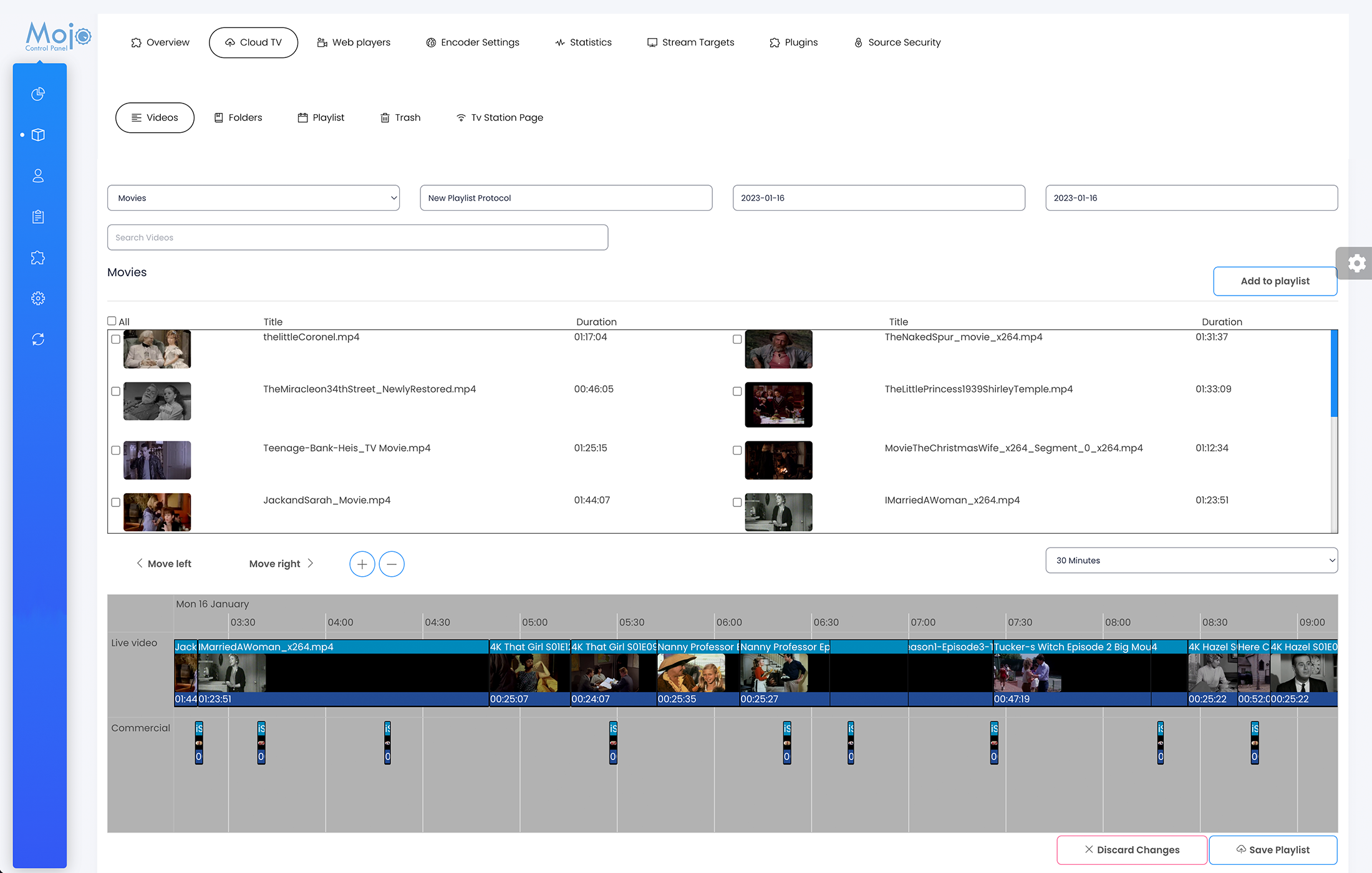
Playlist Function
Under the Playlist function, you will be able to create, duplicate and schedule your Playlists. The playlist will have all of the videos/folders you have added, which you will then drag and drop onto the timeline schedule. We have also implemented a commercial feature, in which you will be able to add a commercial video in-between your show/movie.
Once the commercial ends your show/movie will resume from where it left off, without cutting off any time from your show/movie. You can also select a start and end date for the playlist you create. Using the duplicate playlist function, you will be able drag and drop the duplicated play list to any future dates. Ensure that you restart the playlist schedule when making any changes.
Create a Playlist.
- From Cloud TV Tab, click on Playlist Tab and the Create Playlist Tab.
- Enter a unique Playlist name to help you identify it from other Playlists.
- Choose the start date and end date, if the playlist is for the same date as an example December 28, select both the start and end date for the 28 of December.
- If you would like to repeat the same playlist for more than one day, you can select a different date for the end date on the calendar, or you can duplicate the playlist, from the playlist tab and from then from the playlist page select the playlist you would like to duplicate, by highlighting the playlist and clicking on duplicate playlist. Grab and drag the playlist to the date you would like to repeat the same show and click save.
- Scroll down and lets choose the time line for the schedule, I would suggest to set it to 5 minutes to have a better start and end time at the moment you create the schedule.
- From the drop down menu select the videos category, if you have one, or a default playlist will show.
- From the video block, you can grab and drag to the first line on your Time Line Box live Videos.
- You can repeat the same process to add additional movies.
- If you have a commercial to insert you can add this to the second Time Line Box and select the time you would like the commercial to play.
- If you choose to play this in the middle of the video or movie, you can do this by moving the commercial at the time that you would like it to start. The Movie will pause at the moment the commercial starts and will resume automatically at the same point where it was stopped prior to the commercial.
- Once you’re done, click save and restart the schedule. Note, if there is an existing playlist that is playing, MojoCP will not interrupt what is playing when you restart.
More Videos:
Video tutorials: Cloud TV Broadcast your own internet TV station. CloudTV.