
MojoCP Documentation
-
For Resellers
-
-
For Clients
-
-
WHMCS Integration
Table of Contents
< All Topics
Print
Posted
Updated
Byadmin
Trash & Restore Videos
Streamline your video organization on MojoCP by utilizing the trash feature and restoring trashed files.
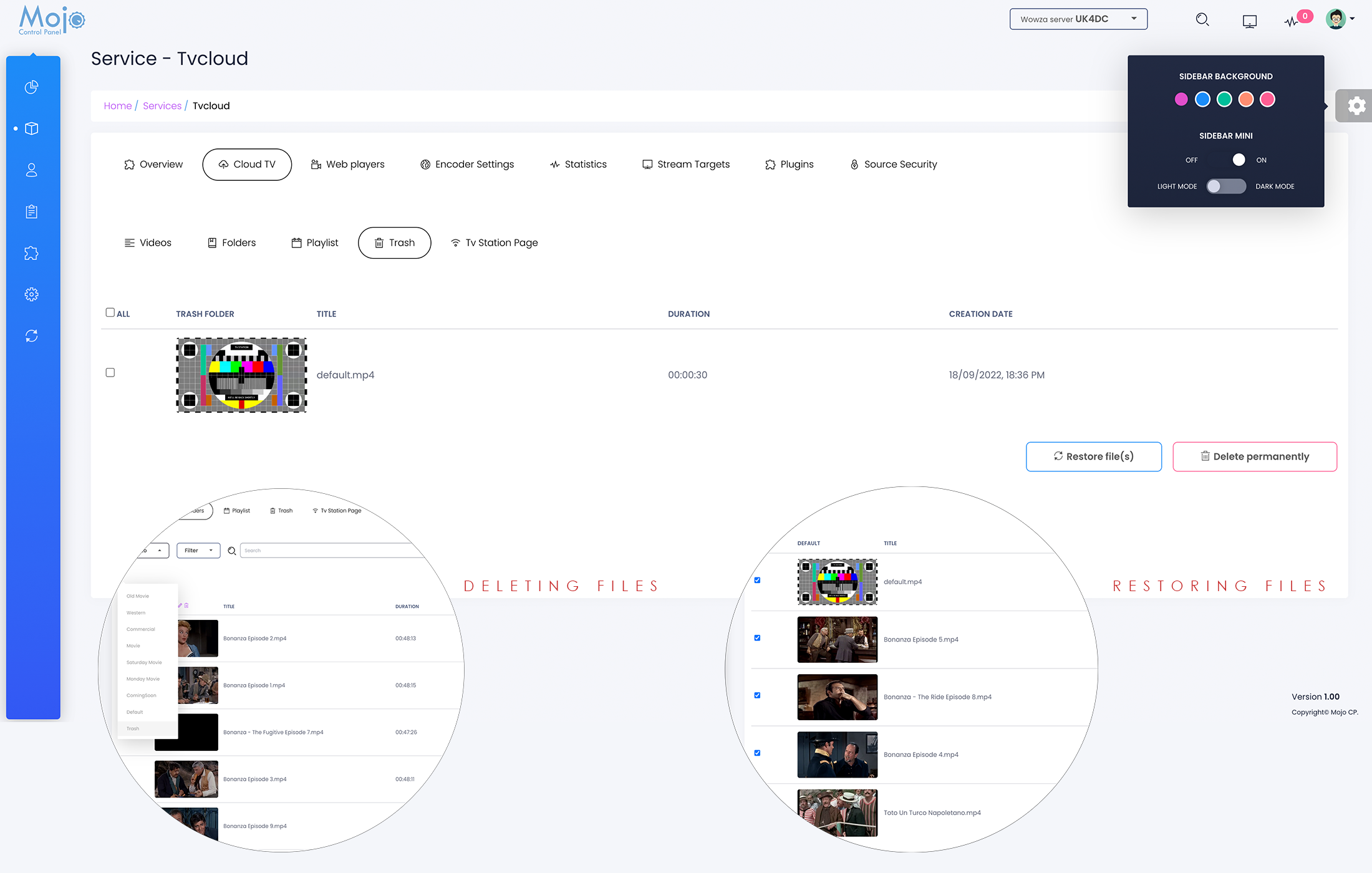
In the trash folder, you will find any videos that you have moved to the trash. By using the restore file(s) button you can restore previously trashed items. Please note, if you permanently delete videos you will no longer have access to these videos.
Delete Permanently
- From your dashboard, click on services and select your server.
- From your overview page, click on the Cloud TV Tab, and the Folders Tab.
- From the Drop Down menu Filter, choose the category folder.
- Select the video you would like to delete from the list, and from the drop down menu select the
“Trash Folder” and click save. - Now you can navigate to the trash Tab and you can choose to “Restore the file” if you have made a mistake deleting, or you can also “Delete Permanently”.
- Once you are done click on the restart schedule to apply the changes.
- Note: By restarting the playlist, MojoCP will not interrupt what is currently playing.
More Videos:
Video tutorials: Cloud TV Broadcast your own internet TV station. CloudTV.