
-
For Resellers
-
-
For Clients
-
-
WHMCS Integration
Uploading Videos via FTP
MojoCP, uploading video content via FTP, an efficient protocol for transferring large files. FTP is a preferred method for advanced users who have a large amount of videos to upload. FTP allows users to transfer large files quickly and efficiently, making it an ideal choice for those who need to upload large video files to their account. With MojoCP’s FTP, users can easily upload their video content, making it available for streaming On-demand, CloudTV. Overall, MojoCP’s FTP is a great feature for advanced users who want to upload large amounts of video content quickly and efficiently.
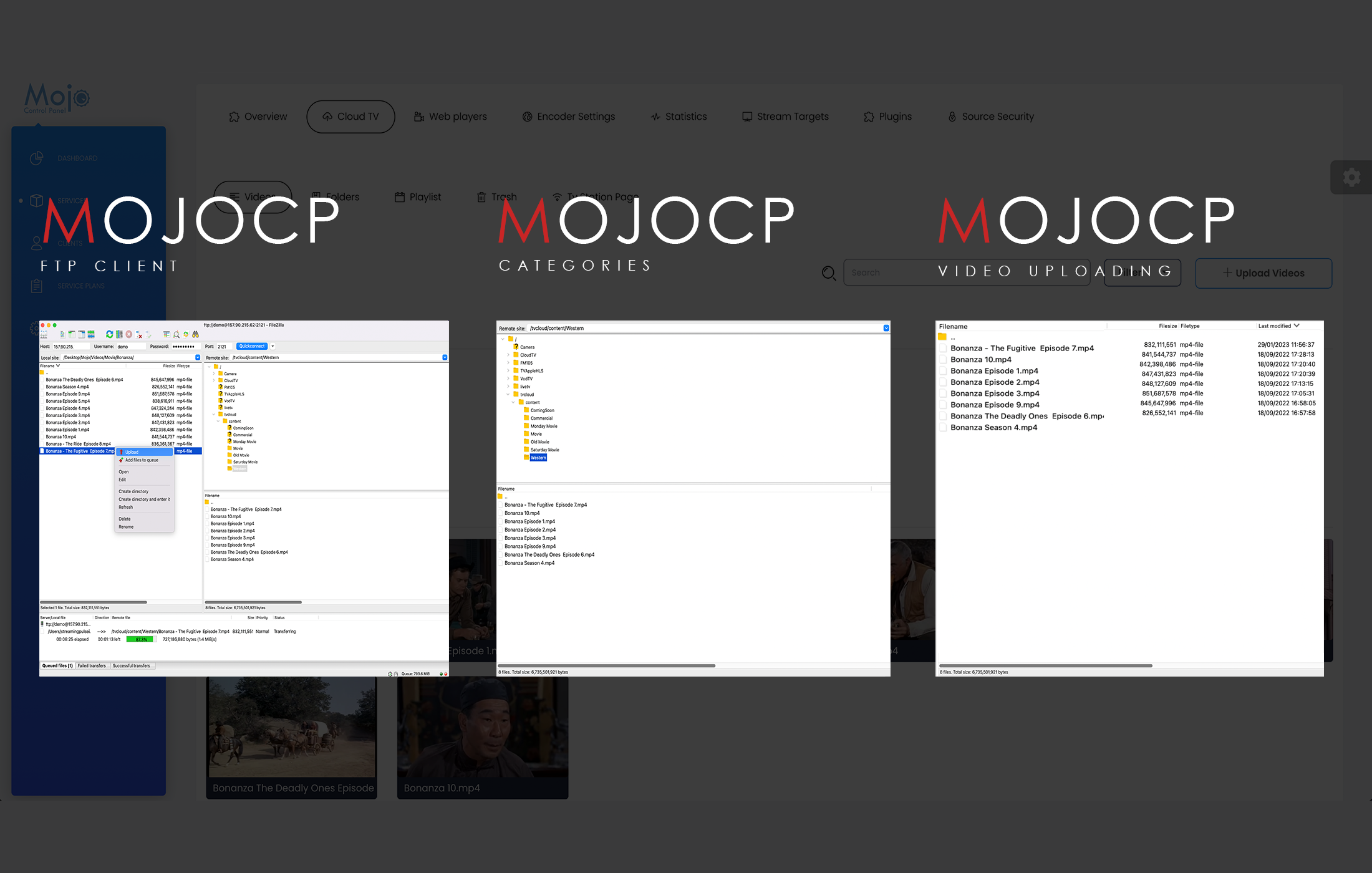
Coming Soon..
Selecting an FTP Client
For MojoCP users who want to upload large amounts of video content, there are various free FTP client solutions available on the internet that are suitable. Some popular options include FileZilla and WinSCP. These FTP clients provide a user-friendly interface and make it easy for users to transfer large files to their MojoCP account. They offer robust security features, ensuring that the user’s files are safe and secure during the transfer process. Additionally, these FTP clients are compatible with a variety of operating systems, making them accessible to a wide range of users. Whether you are a beginner or an advanced user, these FTP clients are a great option for uploading video content to your MojoCP account efficiently and securely.
Configuring your FTP Connection
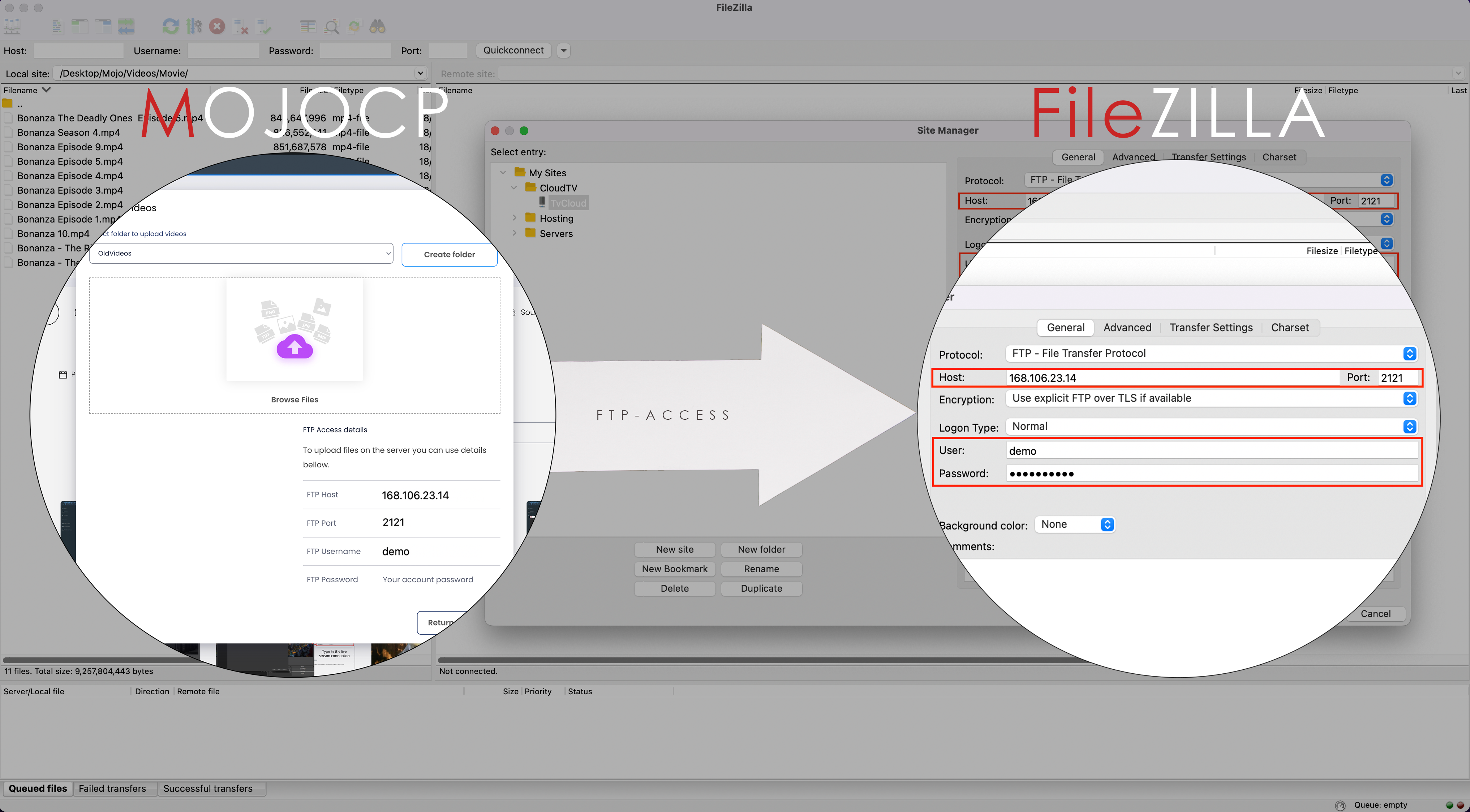
To obtain your FTP connection information in MojoCP, follow these steps:
- Click on the CloudTV tab in the navigation menu.
- In the Videos section on the right-hand side of the page, click on the “Upload Videos” button.
- On the dialog box that appears, look for the “FTP Client Connections” heading.
- Your FTP hostname, port, username, and password will be listed under the “FTP Client Connections” heading.
- Use this information to connect to MojoCP’s FTP server using your preferred FTP client, such as FileZilla or WinSCP.
- By following these steps, you can easily obtain your FTP connection information in MojoCP and begin uploading your video content efficiently and securely.
Uploading Media
To use an FTP client to upload videos to MojoCP, follow these steps:
- Connect to MojoCP server using your FTP client, using the hostname, username, port, and password obtained from the MojoCP platform.
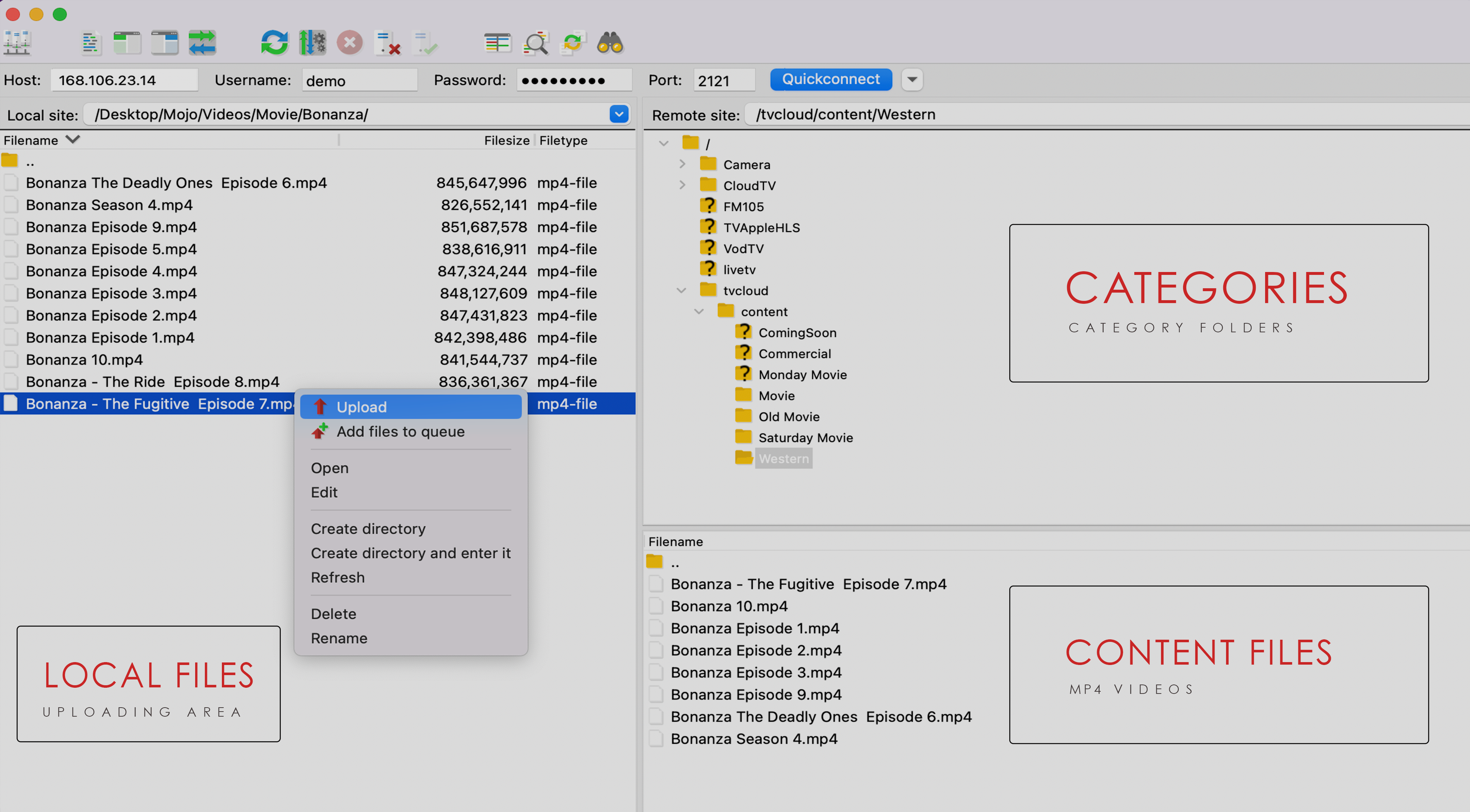
- Once connected, you will see a folder for your application, or multiple folders if you have more than one application.
- To upload your videos, select the desired application folder and navigate to the content folder.
- You can create new folders within the content folder to help organize your video files. The files in these folders will still be detected and included in your CloudTV library.
- To upload videos, simply locate the desired video files on your computer and drag them directly into the content folder shown in the FTP client. The new videos should automatically appear in your CloudTV library within approximately one minute after the upload is complete.
More Videos:
Video tutorials: Cloud TV Broadcast your own internet TV station. CloudTV.