
MojoCP Documentation
-
For Resellers
-
-
For Clients
-
-
WHMCS Integration
Table of Contents
< All Topics
Print
Posted
Updated
Byadmin
Duplicate Playlist
Under the Playlist function, you will be able to create, duplicate and schedule your Playlists.You can also select a start and end date for the playlist you create. Using the duplicate playlist function, you will be able drag and drop the duplicated play list to any future dates. Ensure that you restart the playlist schedule when making any changes.
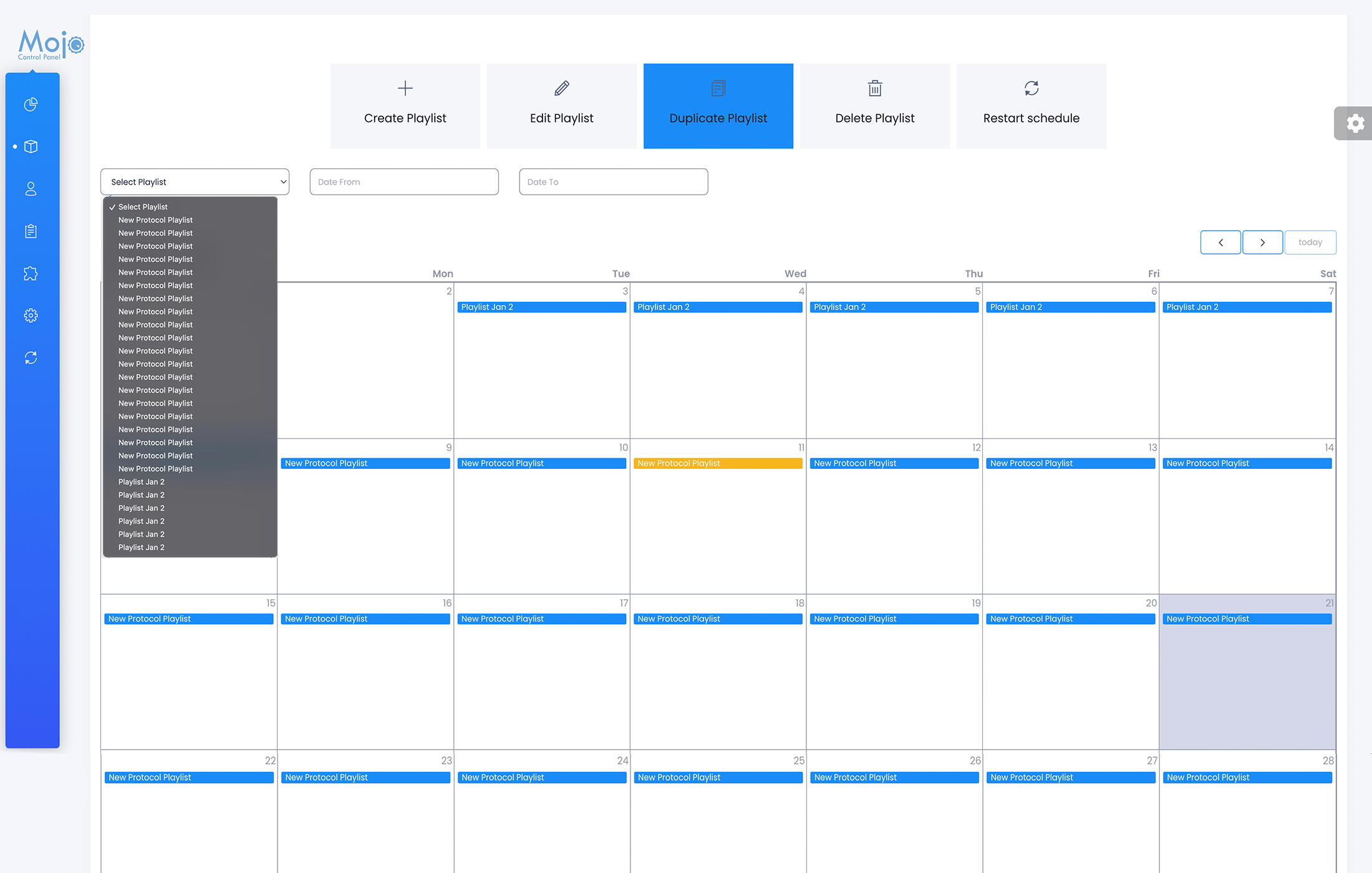
Duplicating Playlist
- From your dashboard, click on services and select your server.
- From your overview page, click on the Cloud TV tab, the playlist tab and from then from the playlist page select the playlist you would like to duplicate, by highlighting the playlist and clicking on duplicate playlist.
- Grab and drag the playlist to the date you would like to repeat the same show.
- You can also use the drop down menu, select the playlist and click on the duplicate playlist tab.
- Once you are done, scroll down and save the data.
- The schedule will reload in order to apply the change.
- Note, if there is an existing playlist on air, MojoCP will not interrupt what is playing when you restart.
More Videos:
Video tutorials: Cloud TV Broadcast your own internet TV station. CloudTV.